File Permissions Complete Guide with Examples
Introduction
Suppose that you own a house. You decide who can enter, who can stay, and who can make changes inside. Some people may only visit, while others may have full control. Computers work in a very similar way through file permissions.
File permissions determine who can read, modify, or execute files and folders. They are one of the most important security features in Linux, Unix, and even Windows systems. Proper file permissions help protect sensitive information, prevent accidental changes, and improve overall system security.
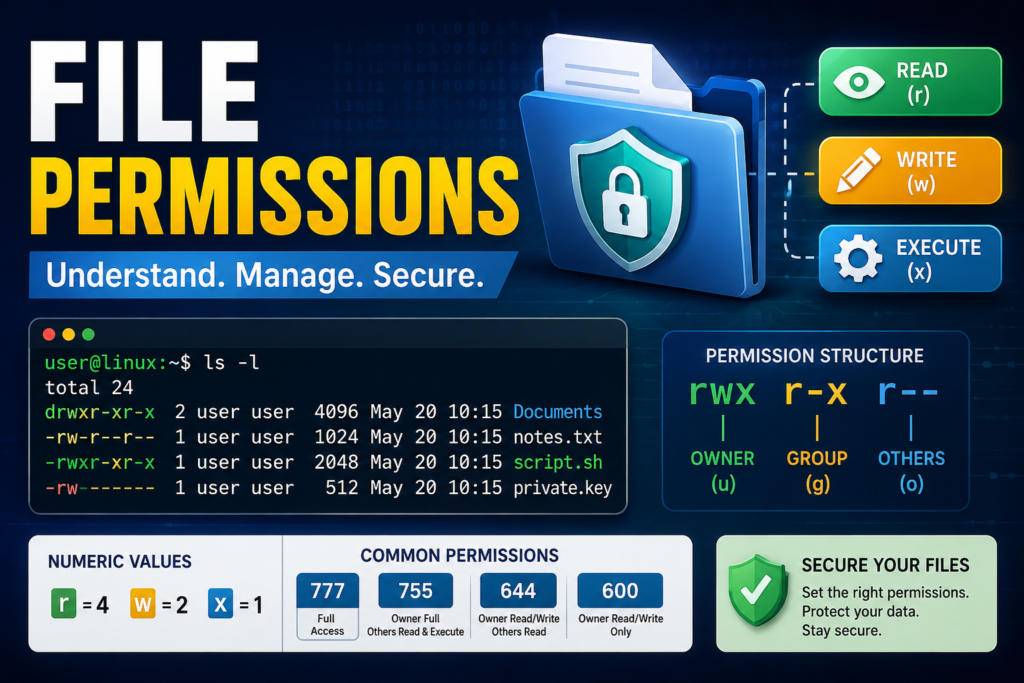
In this guide, you’ll learn what file permissions are, how they work, and how to manage them with practical examples.
Table of Contents
What Are File Permissions?
File permissions are rules that define what actions users can perform on files and directories.
These permissions determine whether a user can:
- Read a file
- Edit or modify it
- Run it as a program
- Access a directory
Without permissions, anyone could delete or modify important system files, making the operating system unstable.
Why File Permissions Matter
File permissions help:
- Protect sensitive data
- Prevent unauthorized access
- Reduce accidental deletion
- Improve system security
- Manage multi-user environments
For example, in a company, employees should not be able to modify payroll files.
Example
Imagine a school library.
There are three groups of people:
- Librarian
- Teachers
- Students
The library contains different books and records.
Permissions work like this:
| Person | Permission |
| Librarian | Read, edit, remove books |
| Teacher | Read and borrow books |
| Student | Read books only |
This is exactly how file permissions work.
Different users receive different access levels.
Three Basic Permissions
Linux uses three basic permissions.
1. Read (r)
Allows viewing the contents of a file.
Example:
You can open a PDF or text file but cannot edit it.
Permission:
r
2. Write (w)
Allows modifying the file.
You can:
- Edit
- Rename
- Delete
- Save changes
Permission:
w
3. Execute (x)
Allows running the file as a program or script.
Example:
backup.sh
Without execute permission:
Permission denied
After adding execute permission:
./backup.sh
The script runs successfully.
File Permission Groups
Linux divides permissions into three categories.
Owner (u)
The person who created the file.
Example:
saqib
Group (g)
Users belonging to the same group.
Example:
developers
Others (o)
Everyone else on the system.
Example:
Guests or normal users.
Permission Structure
Run:
ls -l
Example output:
-rwxr-xr–
Let’s break it down.
–
rwx
r-x
r–
Meaning:
File Type
Owner:
Read
Write
Execute
Group:
Read
Execute
Others:
Read
Understanding the Symbols
| Symbol | Meaning |
| r | Read |
| w | Write |
| x | Execute |
| – | Permission not granted |
Numeric Permission Values
Linux also uses numbers.
| Permission | Value |
| Read | 4 |
| Write | 2 |
| Execute | 1 |
Add the values.
Example:
Read + Write + Execute
4 + 2 + 1 = 7
Common Permission Numbers
| Number | Permission |
| 777 | Everyone has full access |
| 755 | Owner full, others read & execute |
| 700 | Only owner has access |
| 644 | Owner can edit, others can read |
| 600 | Owner read & write only |
Example
Permission:
755
Means:
Owner
Read ✔
Write ✔
Execute ✔
Group
Read ✔
Write ✘
Execute ✔
Others
Read ✔
Write ✘
Execute ✔
Viewing Permissions
Command:
ls -l
Example:
-rw-r–r– notes.txt
Meaning:
Owner:
Read
Write
Group:
Read
Others:
Read
Changing Permissions
Linux uses the chmod command.
Symbolic Method
Give execute permission.
chmod +x script.sh
Remove write permission.
chmod -w file.txt
Add read permission.
chmod +r file.txt
Numeric Method
Example:
chmod 755 script.sh
Example:
chmod 644 notes.txt
Example:
chmod 700 secret.txt
Changing File Ownership
Use:
chown
Example:
sudo chown ali file.txt
Now the owner becomes:
ali
Changing Group Ownership
sudo chgrp developers project
Now the file belongs to:
developers
Directory Permissions
Directories also have permissions.
For directories:
Read:
Allows listing files.
Write:
Allows creating or deleting files.
Execute:
Allows entering the directory.
Example:
cd Documents
Without execute permission:
Permission denied
Secure Permission Practices
Recommended permissions:
| File Type | Permission |
| Website files | 644 |
| Directories | 755 |
| Private keys | 600 |
| Shell scripts | 755 |
| Configuration files | 640 or 600 |
Dangerous Permissions
Never use:
chmod 777
unless absolutely necessary.
Reason:
Everyone can:
- Read
- Edit
- Delete
- Execute
This creates serious security risks.
Example
Suppose you have:
salary.xlsx
You don’t want coworkers to edit it.
Set:
chmod 600 salary.xlsx
Now only you can read and modify the file.
Example
Imagine a company’s HR department.
The folder contains employee records.
Permissions:
- HR Manager: Read, Write, Execute
- HR Staff: Read and Write
- Other Employees: No Access
Linux permissions enforce this same level of controlled access, ensuring confidential information remains protected.
Best Practices
- Follow the principle of least privilege (give only the permissions needed).
- Avoid using 777 on production servers.
- Regularly audit file permissions.
- Keep sensitive files restricted with 600 or 640.
- Assign users to groups instead of giving permissions individually.
- Review permissions after software installations or migrations.
Advantages of File Permissions
- Protects sensitive information
- Prevents unauthorized modifications
- Supports secure multi-user systems
- Reduces accidental file deletion
- Enhances server security
- Simplifies access management
Disadvantages
- Incorrect settings may block legitimate users.
- Overly permissive access can create security vulnerabilities.
- Managing permissions on large systems requires planning and regular maintenance.
How to Change Android app permissions
Android app permissions control what an application can access or use on your phone. Depending on the app, permissions may include camera, microphone, location, contacts, photos and videos, files, phone, SMS, calendar, and notifications.
Managing these permissions can help you control your privacy and prevent apps from accessing information they do not need.
What Are App Permissions?
When you install or use an Android app, the app may request access to certain features or information on your device.
For example:
- A camera app may need Camera and Microphone permissions.
- A maps app may need Location permission.
- A messaging app may need Contacts and Photos permissions.
- A video-calling app may need Camera and Microphone permissions.
- A file manager may need access to files and media.
Android allows you to review and change these permissions through the Settings app.
How to Change App Permissions on Android
The exact menu names can vary depending on your Android version and phone manufacturer, but the general process is similar.
Step 1: Open Settings
Open the Settings app on your Android phone.
You can usually find it in your app drawer or by opening the Quick Settings panel and tapping the gear icon.
Step 2: Open Apps
Look for an option such as:
Settings → Apps
On some phones, it may be called:
- Apps & notifications
- Applications
- App management
- Manage apps
Step 3: Select an App
Find and tap the application whose permissions you want to change.
For example:
Settings → Apps → WhatsApp
Step 4: Open Permissions
Tap Permissions.
You will see the permissions currently allowed or denied for that application.
Step 5: Select a Permission
Tap the permission you want to modify.
For example:
Location → Allow only while using the app
Depending on the permission and Android version, you may see different choices.
Common Android Permission Options
Allow
The application can use the selected feature or information.
For example, if you allow Camera permission, the app can access your camera when it uses that functionality.
Don’t Allow
The application cannot access the selected permission.
You can change the setting again later if necessary.
Ask Every Time
On supported permissions and Android versions, Android can ask you each time the application requests access.
Allow Only While Using the App
This option is commonly available for Location.
The app can access your location while you are actively using it, subject to Android’s permission behavior.
How to Change Location Permission
Location access is particularly important because it can reveal where your device is located.
Go to:
Settings → Apps → Select App → Permissions → Location
Depending on your device, you may see options such as:
- Allow all the time
- Allow only while using the app
- Ask every time
- Don’t allow
For apps that don’t need continuous location access, you can consider using Allow only while using the app when available.
How to Change Camera Permission
To control camera access:
Settings → Apps → Select App → Permissions → Camera
You can then allow or deny camera access according to the options provided by your Android version.
For example, a video-conferencing application may require camera access for video calls.
How to Change Microphone Permission
To control microphone access:
Settings → Apps → Select App → Permissions → Microphone
You can choose an available option such as:
Allow or Don’t allow.
If an application doesn’t need voice recording, you may not need to give it microphone access.
How to Change Contacts Permission
To manage contacts access:
Settings → Apps → Select App → Permissions → Contacts
Review whether the application actually needs access to your contacts.
For example, a communication application may request Contacts permission to help you find people you know.
How to Change Photos and Videos Permission
On supported Android versions, you can control an application’s access to photos and videos.
Go to:
Settings → Apps → Select App → Permissions → Photos and videos
Depending on your Android version and device, you may have options that allow access to selected photos and videos rather than your entire photo library.
How to Change Files and Media Permissions
Some applications need access to files or media stored on your device.
Go to:
Settings → Apps → Select App → Permissions
Look for permissions related to:
- Files
- Photos and videos
- Music and audio
- Other files
The exact options depend on the Android version and application.
How to Manage Permissions by Permission Type
Instead of checking applications individually, Android can also allow you to see which apps have access to a particular type of information.
On many recent Android devices, go to:
Settings → Security & privacy → Privacy → Permission manager
You may see categories such as:
- Camera
- Microphone
- Location
- Contacts
- Phone
- SMS
- Calendar
- Photos and videos
Select a category to see the applications that have requested that permission.
How to Check Which Apps Can Access Your Camera
Open:
Settings → Security & privacy → Privacy → Permission manager → Camera
You can review the applications with camera access and change their permissions.
How to Check Which Apps Can Access Your Microphone
Go to:
Settings → Security & privacy → Privacy → Permission manager → Microphone
Review the applications listed there and change permissions where necessary.
How to Check Which Apps Can Access Your Location
Go to:
Settings → Security & privacy → Privacy → Permission manager → Location
You can review which applications have location access and adjust their permissions.
How to Change Permissions on Samsung Phones
Samsung’s menus can vary by One UI version, but a common route is:
Settings → Apps → Select App → Permissions
For example:
Settings → Apps → Instagram → Permissions → Camera → Don’t allow
You can also use Samsung’s privacy settings to review permission access.
How to Change Permissions on Xiaomi Phones
On Xiaomi/Redmi/POCO devices, the menu can vary by MIUI or HyperOS version.
A common route is:
Settings → Apps → Manage apps → Select App → App permissions
From there, you can review and modify available permissions.
How to Change Permissions on Android 13, 14, 15 and Later
Newer Android versions provide more granular privacy controls than older versions.
Depending on the device and permission, Android may allow you to:
- Grant access only while using an app
- Select specific photos instead of all photos
- Deny access completely
- Review which applications have requested sensitive permissions
- Receive privacy indicators when the camera or microphone is being used
The exact features depend on the Android version and device manufacturer.
What Happens When You Deny a Permission?
If you deny a permission, the application may continue working normally, but a particular feature may stop working.
For example:
Deny Camera → video calling may not work.
Deny Microphone → voice recording may not work.
Deny Location → location-based features may not work correctly.
Deny Contacts → contact synchronization or contact discovery may not work.
If you need the feature later, you can return to the permission settings and grant access.
Can You Change App Permissions Later?
Yes. You don’t have to permanently accept or reject a permission when an app initially requests it.
You can change permissions later through:
Settings → Apps → App → Permissions
This is useful when your privacy preferences change or when an application needs a permission for a specific feature.
How to Automatically Remove Permissions From Unused Apps
Some Android versions include a feature that can automatically reset permissions for applications that you haven’t used for a while.
You may find it under the application’s settings, often as an option similar to:
Pause app activity if unused
or
Remove permissions if app is unused
The exact wording varies by Android version and manufacturer.
Android App Permissions Example
Suppose you install a photo-editing application.
It may request:
| Permission | Possible Purpose |
| Photos and videos | Select images for editing |
| Camera | Take a new photo |
| Microphone | Record audio for certain features |
| Notifications | Send editing or processing notifications |
| Location | Location-based features, if supported |
You can review each permission individually instead of automatically granting everything.
Why Should You Check App Permissions?
Regularly reviewing permissions can help you:
- Improve privacy
- Reduce unnecessary access to personal information
- Control camera and microphone access
- Control location access
- Identify applications requesting unnecessary permissions
- Remove access from applications you no longer trust or use
- Understand how applications interact with your device
Important Privacy Tip
Don’t automatically grant every permission an application requests. Consider why the app needs the permission and whether the requested access is relevant to the feature you want to use.
For example, a navigation application reasonably needs location access for navigation, while a simple calculator generally has little reason to require access to your contacts.
Conclusion
File permissions are a fundamental part of operating system security. By controlling who can read, modify, or execute files, they help protect data, support collaboration, and keep systems stable. Whether you’re managing a personal Linux computer, a web server, or an enterprise network, understanding file permissions is an essential skill. Learning to use commands like ls, chmod, chown, and chgrp will enable you to manage files securely and confidently.