User Management Complete Guide with Examples
User Management is the process of creating, organizing, controlling, monitoring, and removing user accounts within a computer system, network, website, application, or organization. It ensures that the right people have the right level of access to the right resources at the right time.
In simple terms, answers three important questions:
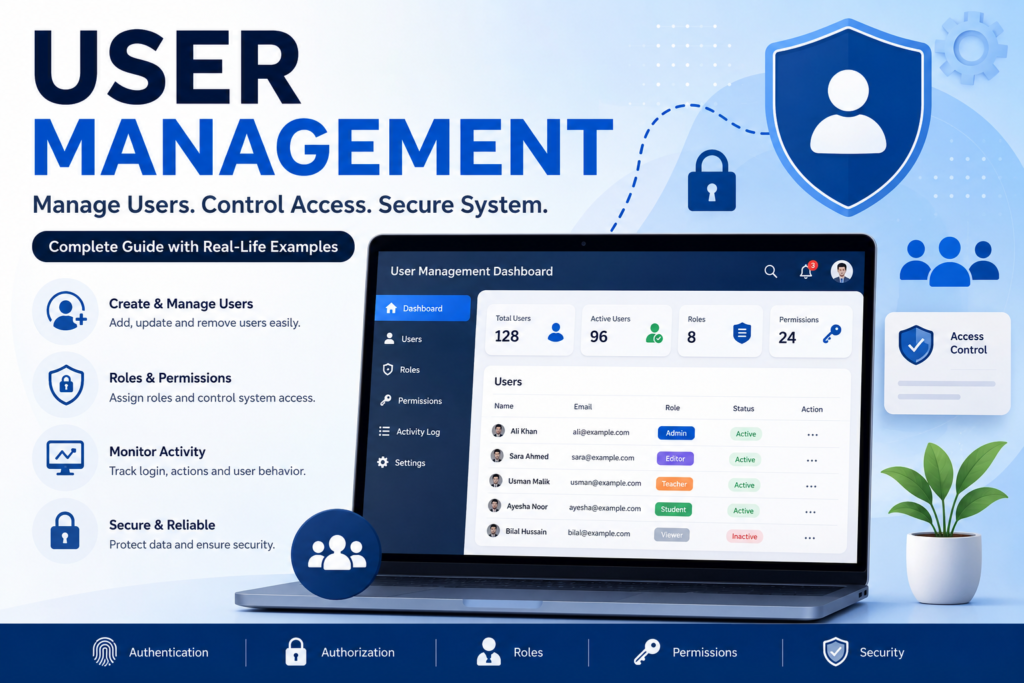
Table of Contents
- Who are you? (Authentication)
- What can you access? (Authorization)
- What actions are you allowed to perform? (Permissions)
Without proper Management, unauthorized users may gain access to confidential information, modify important data, or even damage an organization’s systems.
What is User Management?
User Management is an administrative process that controls users throughout their lifecycle from creating an account to deleting it when it is no longer needed.
It includes:
- Creating user accounts
- Updating user information
- Assigning roles
- Setting permissions
- Resetting passwords
- Monitoring activity
- Disabling or deleting accounts
Example:
School Management System
Imagine a school using an online portal.
There are four types of users:
Administrator
The administrator can:
- Add students
- Add teachers
- Manage courses
- View reports
- Reset passwords
- Delete accounts
The administrator has complete control.
Teacher
Teachers can:
- Upload assignments
- Enter student marks
- View student attendance
- Communicate with students
Teachers cannot:
- Delete student accounts
- Change administrator settings
Student
Students can:
- View courses
- Download notes
- Submit assignments
- View grades
Students cannot:
- Edit another student’s grades
- Add teachers
- Delete courses
Parent
Parents can:
- View their child’s attendance
- Check grades
- Receive announcements
Parents cannot edit any school records.
This is Management because every user receives different permissions according to their role.
Example:
Online Banking
A banking application has different users.
Customer
Can:
- View balance
- Transfer money
- Download statements
Cannot:
- Approve loans
- Create bank accounts
Bank Employee
Can:
- Verify customers
- Process requests
- Open accounts
Cannot:
- Change system settings
Bank Manager
Can:
- Approve loans
- Manage employees
- View reports
System Administrator
Can:
- Manage all users
- Reset passwords
- Configure servers
- Manage permissions
Why User Management is Important
Proper User Management provides many benefits.
1. Improved Security
Only authorized users can access sensitive information.
2. Better Data Protection
Important company information remains protected from unauthorized users.
3. Easy Administration
Administrators can quickly create or remove users.
4. Regulatory Compliance
Many industries require organizations to control who can access data.
Examples include:
- GDPR
- HIPAA
- ISO 27001
5. Increased Productivity
Employees can access only the tools they need, reducing confusion and mistakes.
User Management Lifecycle
A typical user account goes through several stages.
Step 1: User Creation
A new employee joins the company.
Administrator creates:
- Username
- Password
- Department
- Role
Example:
Username: ali
Role: Employee
Department: HR
Step 2: Authentication
The user logs in using:
- Username
- Password
Sometimes additional verification is required, such as:
- OTP
- Fingerprint
- Face Recognition
Step 3: Authorization
The system checks:
“What is this user allowed to do?”
Example:
Employee
✔ View HR Documents
✔ Submit Leave
✖ Delete Employees
✖ Modify Payroll
Step 4: Activity Monitoring
The system records actions such as:
- Login time
- Logout time
- File downloads
- Changes made
- Failed login attempts
Step 5: User Update
When responsibilities change, administrators update:
- Role
- Department
- Permissions
Step 6: User Removal
When a user leaves the organization:
- Account is disabled
- Data is archived
- Access is revoked
Components of User Management
Authentication
Authentication verifies identity.
Examples:
- Username and Password
- Fingerprint
- Face Recognition
- Smart Card
- OTP
- MFA
Authorization
Authorization determines what actions a user can perform after logging in.
Example:
Student
↓
Can View Notes
Cannot Edit Notes
Roles
A role is a predefined collection of permissions.
Example:
| Role | Permissions |
| Admin | Full Access |
| Manager | Manage Team |
| Teacher | Manage Classes |
| Student | View Courses |
Permissions
Permissions specify exactly what users can do.
Examples:
- Read
- Write
- Update
- Delete
- Upload
- Download
Groups
Users with similar responsibilities can be placed into groups.
Example:
HR Group
Ali
Ahmed
Sara
Ayesha
Permissions are assigned to the group rather than each individual user.
Types of User Accounts
Administrator
Highest level of access.
Standard User
Normal access for daily tasks.
Guest User
Limited access for temporary users.
Service Account
Used by software and automated services.
Super Administrator
Has complete control over all systems.
Role Based Access Control (RBAC)
RBAC assigns permissions based on roles rather than individuals.
Example:
Admin
│
├── Create User
├── Delete User
├── Reset Password
└── Manage Settings
Teacher
│
├── Upload Assignments
├── Grade Students
└── View Students
Student
│
├── View Courses
├── Submit Assignments
└── Download Files
RBAC makes administration easier and reduces security risks.
Best Practices for User Management
Follow these recommendations:
- Use strong passwords.
- Enable Multi Factor Authentication (MFA).
- Apply the Principle of Least Privilege.
- Regularly review user permissions.
- Disable inactive accounts.
- Monitor user activities.
- Keep software updated.
- Perform regular security audits.
- Train users on cybersecurity awareness.
- Back up user data regularly.
Common User Management Challenges
Organizations often face:
- Weak passwords
- Shared accounts
- Forgotten passwords
- Excessive permissions
- Inactive user accounts
- Insider threats
- Human error
These risks can be minimized through effective policies and regular reviews.
Popular User Management Systems
Common identity and access management solutions include:
- Microsoft Active Directory (AD)
- Microsoft Entra ID (formerly Azure Active Directory)
- Okta
- Keycloak
- Auth0
- LDAP
- Google Workspace
- AWS Identity and Access Management (IAM)
User Management in Websites
A website typically supports multiple user roles.
Example:
Administrator
- Manage website
- Manage users
- Publish content
Editor
- Edit articles
- Approve content
Author
- Write articles
- Upload images
Subscriber
- Read content
- Update profile
This role based model is widely used in content management systems such as WordPress.
What Is User Experience Design?
User Experience Design (UX Design) is the process of designing digital products, websites, applications, and systems so they are easy to use, useful, accessible, and satisfying for users.
UX design focuses on the complete experience a person has when interacting with a product from finding information and navigating pages to completing tasks and receiving feedback.
Key Elements of User Experience Design
- User Research – Understanding users, their needs, goals, and problems.
- Information Architecture – Organizing content and features in a logical structure.
- User Interface (UI) – Designing buttons, menus, forms, layouts, colors, and other visual elements.
- Navigation – Making it easy for users to find what they need.
- Usability – Ensuring users can complete tasks efficiently and with minimal confusion.
- Accessibility – Designing products that can be used by people with different abilities.
- Prototyping – Creating interactive or visual models before development.
- Usability Testing – Testing designs with users to identify problems and improve the experience.
Example
Consider an online learning platform. Good UX design might provide:
- Simple registration and login
- Clear course categories
- Easy to understand navigation
- Search and filtering
- Progress tracking
- Readable course content
- Clear error messages
- Mobile friendly pages
The goal is to help users accomplish their tasks easily and efficiently.
UX Design vs UI Design
| UX Design | UI Design |
| Focuses on the overall user experience | Focuses mainly on the visual interface |
| Researches user needs | Designs visual elements |
| Plans user flows | Designs buttons, colors, typography, etc. |
| Focuses on usability | Focuses on visual consistency and interaction |
In short: UX design focuses on how a product works and feels to the user, while UI design focuses primarily on how the interface looks and interacts.
Conclusion
- User Management controls user identities and access to systems.
- Authentication confirms who the user is.
- Authorization determines what the user can do.
- Roles and permissions help organize access efficiently.
- Proper User Management improves security, productivity, and compliance.
- Systems such as schools, banks, websites, and businesses rely on User Management to protect resources and ensure users access only what they need.