What Are Terminal Commands?
Terminal commands are text-based instructions. That allows you to communicate directly with your operating system. Instead of clicking icons or navigating through menus, you type commands to perform tasks. Such as creating files, managing folders, installing software, checking system information, and troubleshooting problems.
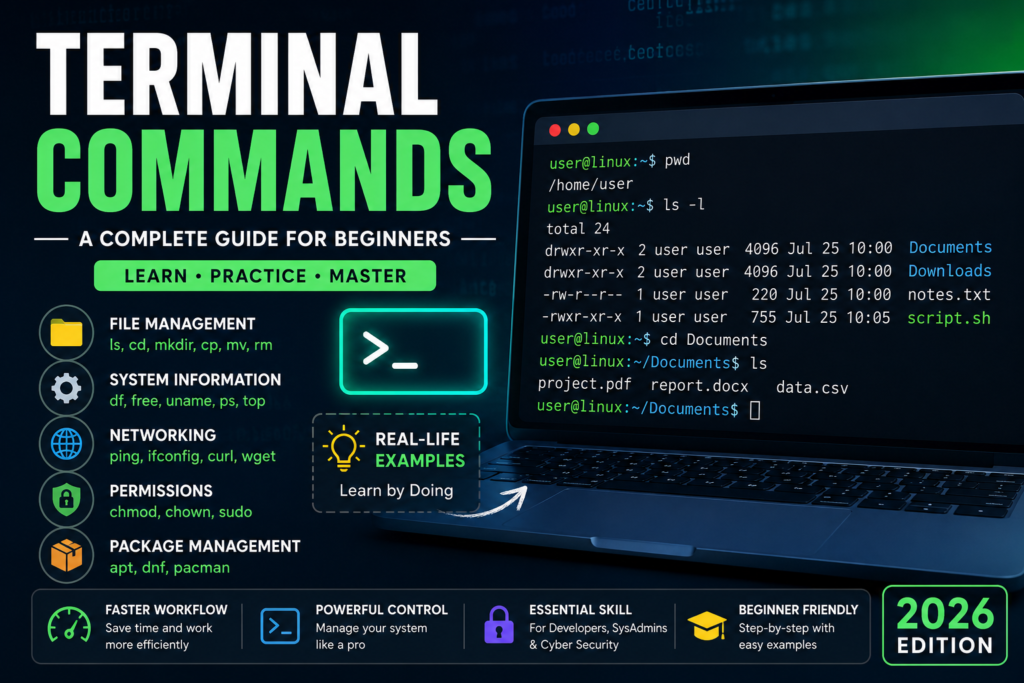
The Terminal is also known as:
- Terminal (Linux & macOS)
- Command Line Interface (CLI)
- Shell
- Console
Linux primarily uses shells like Bash and Zsh.
Example
Sposed that you’re the manager of a huge warehouse.
Using the graphical interface (GUI) is like walking to each shelf to find or organize products.
Using the Terminal is like giving instructions over a radio:
“Open Shelf A, move Box 5 to Shelf B, then count the remaining boxes.”
The workers immediately perform the task.
Similarly, when you type:
mkdir Projects
You’re telling Linux:
“Create a new folder named Projects.”
The operating system follows your instructions instantly.
Table of Contents
Why Learn Terminal Commands?
Learning Terminal commands provides many benefits:
- Faster than using the mouse
- Better control over the operating system
- Essential for servers
- Required for cybersecurity
- Used by programmers
- Helpful for automation
- Useful for troubleshooting
- Required for cloud computing
Opening the Terminal
Most Linux distributions provide Terminal in the applications menu.
Here are official websites for popular Linux distributions:
| Linux Distribution | Official Website |
| Ubuntu | https://ubuntu.com/ |
| Debian | https://www.debian.org/ |
| Fedora | https://fedoraproject.org/ |
| Arch Linux | https://archlinux.org/ |
| Linux Mint | https://linuxmint.com/ |
| Kali Linux | https://www.kali.org/ |
| openSUSE | https://www.opensuse.org/ |
| Rocky Linux | https://rockylinux.org/ |
| AlmaLinux | https://almalinux.org/ |
| Oracle Linux | https://www.oracle.com/linux/ |
| Gentoo | https://www.gentoo.org/ |
| Slackware | https://www.slackware.com/ |
| Alpine Linux | https://www.alpinelinux.org/ |
| Manjaro | https://manjaro.org/ |
| Pop!_OS | https://system76.com/pop/ |
Shortcut:
Ctrl + Alt + T
Understanding the Command Structure
A command usually follows this format:
command [options] [arguments]
Example:
ls -l Documents
Where:
- ls → command
- -l → option
- Documents → argument
1. Check Current Directory
Command:
pwd
Output:
/home/student
Meaning:
Shows your current working directory.
Example:
Like checking your current location using Google Maps.
2. List Files
Command:
ls
Output:
Desktop
Downloads
Documents
Pictures
Useful options:
ls -l
Detailed list
ls -a
Shows hidden files
ls -lh
Human-readable file sizes
3. Change Directory
Command:
cd Documents
Go back:
cd ..
Go home:
cd ~
Example:
Like moving from one room to another inside a house.
4. Create a Folder
Command:
mkdir Projects
Create multiple folders:
mkdir HTML CSS JavaScript
5. Remove Folder
Empty folder:
rmdir Projects
Folder with files:
rm -r Projects
Be careful:
rm -rf
This permanently deletes files.
6. Create Files
Using touch:
touch notes.txt
Create multiple files:
touch file1.txt file2.txt file3.txt
7. Delete Files
rm notes.txt
Delete multiple:
rm file1.txt file2.txt
8. Copy Files
cp notes.txt backup.txt
Copy folder:
cp -r Projects Backup
9. Move Files
mv notes.txt Documents/
Rename file:
mv old.txt new.txt
10. View File Content
Display:
cat notes.txt
Long file:
less notes.txt
Beginning:
head notes.txt
End:
tail notes.txt
Live logs:
tail -f logfile.log
11. Search Files
find . -name “*.php”
Example output:
./website/index.php
./admin/login.php
12. Search Text
grep “password” config.php
Case insensitive:
grep -i error logfile.log
13. Check Disk Usage
df -h
Shows:
- Total storage
- Used storage
- Free storage
14. Check Folder Size
du -sh Downloads
Output:
3.5G Downloads
15. Check Memory Usage
free -h
Shows:
- RAM
- Used memory
- Available memory
16. View Running Processes
ps
More detailed:
top
Modern version:
htop
17. Kill a Process
kill 1250
Force kill:
kill -9 1250
18. Check IP Address
ip addr
Older command:
ifconfig
19. Test Internet Connection
ping google.com
Stop:
Ctrl + C
20. Download Files
wget https://example.com/file.zip
Alternative:
curl -O https://example.com/file.zip
21. Install Software
Ubuntu:
sudo apt update
sudo apt install git
Fedora:
sudo dnf install git
Arch Linux:
sudo pacman -S git
22. Update System
Ubuntu:
sudo apt update
sudo apt upgrade
23. File Permissions
View:
ls -l
Example:
-rwxr-xr–
Meaning:
- Owner permissions
- Group permissions
- Others permissions
Change permissions:
chmod 755 script.sh
Make executable:
chmod +x script.sh
24. Change Ownership
sudo chown username file.txt
25. Check Current User
whoami
Output:
student
26. System Information
uname -a
Kernel version:
uname -r
Operating system:
cat /etc/os-release
27. Clear Screen
clear
Shortcut:
Ctrl + L
Scenario Organizing a Web Development Project
Suppose you’re building a website.
Step 1: Create a project folder
mkdir MyWebsite
Step 2: Enter the folder
cd MyWebsite
Step 3: Create project files
touch index.html style.css script.js
Step 4: Verify files
ls
Output:
index.html
style.css
script.js
Step 5: Create an images folder
mkdir images
Step 6: Move into images
cd images
Step 7: Return to the project root
cd ..
Step 8: Create a backup
cp -r MyWebsite MyWebsite_Backup
This demonstrates how developers manage projects efficiently using the Terminal.
Tips
- Practice commands in a safe directory.
- Double-check before using rm -rf.
- Use the Tab key for auto-completion.
- Press the Up Arrow to reuse previous commands.
- Use man <command> to read a command’s manual page (for example, man ls).
- Use –help to see quick usage information (for example, cp –help).
Common Mistakes
| Mistake | Solution |
| Deleting the wrong files | Verify the path before using rm. |
| Running commands without permissions | Use sudo only when necessary. |
| Misspelling command names | Use Tab auto-completion. |
| Working in the wrong directory | Check your location with pwd. |
| Ignoring error messages | Read the full output before retrying. |
Conclusion
Terminal commands are a fundamental skill for Linux users, system administrators, developers, cybersecurity professionals, and DevOps engineers. By mastering commands for navigation, file management, permissions, networking, and software installation, you can work more efficiently and automate complex tasks. Start with the basics, practice regularly, and gradually build confidence using the command line.
FAQ
Is the Terminal difficult to learn?
No. Once you understand a few basic commands, you’ll be able to complete many tasks quickly and efficiently.
Are Terminal commands the same on every Linux distribution?
Most common commands are the same. Package management commands (such as apt, dnf, and pacman) vary by distribution.
Is using the Terminal faster than a graphical interface?
For many tasks especially repetitive or administrative work—the Terminal is significantly faster and more powerful.
Can I damage my system using Terminal commands?
Yes, Commands like rm -rf or incorrect use of sudo can remove important files. Always review a command before pressing Enter.