OS Complete Beginner’s Guide with Examples (2026)
Introduction
An Operating System (OS) is the most important software that is used for operating a computer or smart device. It acts as a bridge between the user, applications, and the hardware. Without an OS, a computer cannot function or run programs.
Whether you’re using a Windows on laptop, an Android on your phone, a MacBook, or a Linux server, an OS is constantly working behind the scenes to manage files, memory, hardware, and applications.
In this tutorial, you’ll learn what an OS is and how it works, its features like types, advantages, disadvantages,with examples.
What Is an Operating System?
An Operating System (OS) is system software that manages computer hardware and software resources while providing services for programs and users.
It allows users to interact with a computer through a graphical interface (GUI) or command-line interface (CLI).
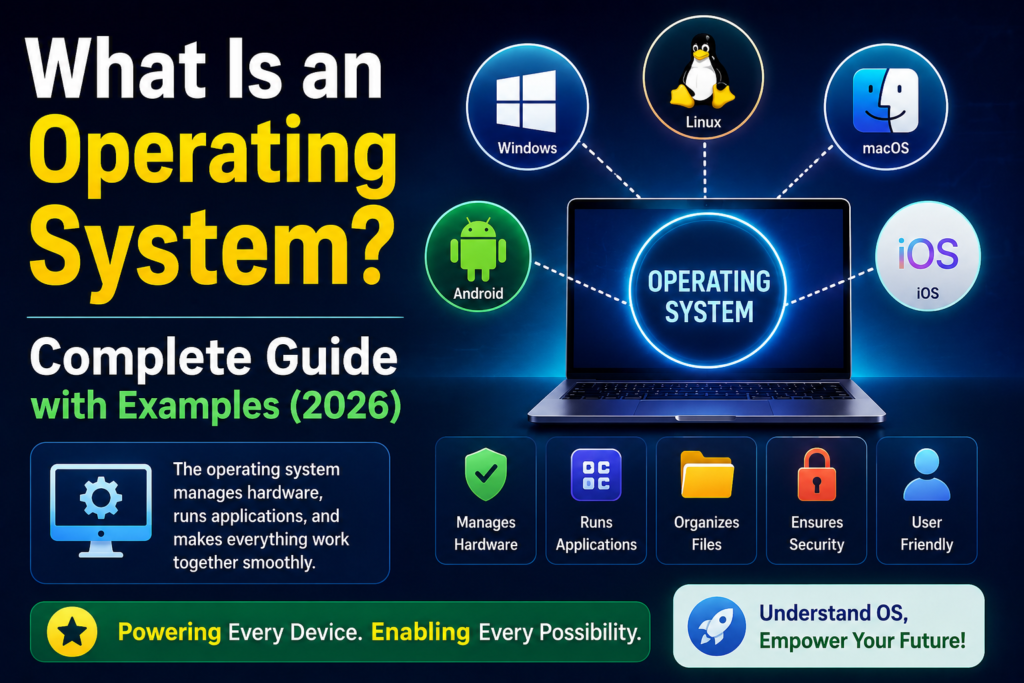
Table of Contents
Simple Definition:
An OS is software that controls the entire computer and enables users to run applications efficiently.
Example
For example a hotel.
- The guest is the user.
- The hotel rooms are the computer hardware.
- The hotel manager is the OS.
- The hotel staff are system services.
When a guest requests food, room cleaning, or other services, they don’t communicate directly with every employee. Instead, the hotel manager coordinates everything.
Similarly, users don’t communicate directly with the computer’s hardware. The OS manages all communication between software and hardware.
Why Is an OS Important?
If you have not an OS:
- A computer cannot boot.
- Applications cannot run.
- Hardware cannot communicate properly.
- Files cannot be organized.
- Users cannot interact with the computer easily.
The OS is the foundation of every computing device.
Main Functions of an OS
1. Process Management
The OS manages all running programs.
Example:
You can listen to music while browsing the internet and downloading files. Because the OS schedules each and every task efficiently.
2. Memory Management
The OS allocates RAM to applications and frees memory when programs close.
Example:
Google Chrome, Microsoft Word, and Spotify each receive their own memory space.
3. File Management
The operating system organizes files and folders.
Examples:
- Documents
- Photos
- Videos
- Downloads
It also controls permissions and storage locations.
4. Device Management
The OS controls hardware devices such as:
- Keyboard
- Mouse
- Printer
- Webcam
- Speakers
- USB drives
It uses device drivers to communicate with these devices.
5. Security
Modern operating systems provide security features like:
- User accounts
- Password protection
- Encryption
- Firewall
- Antivirus integration
- Secure login
6. User Interface
The OS provides ways for users to interact with the computer.
There are two common interfaces:
Graphical User Interface (GUI)
Examples:
- Windows
- macOS
- Android
Users click icons and use menus.
Command-Line Interface (CLI)
Examples:
- Linux Terminal
- Windows Command Prompt
- PowerShell
Users type commands.
7. Resource Management
The operating system efficiently shares resources like:
- CPU
- RAM
- Disk storage
- Network
- Input/Output devices
Types of Operating Systems
1. Batch OS
Processes similar jobs together without user interaction.
Example:
Payroll processing.
2. Time-Sharing OS
Multiple users use the same computer simultaneously.
Example:
University computer labs.
3. Distributed OS
Multiple computers work together as one system.
Example:
Cloud computing environments.
4. Network OS
Manages computers connected through a network.
Example:
Windows Server.
5. Real-Time OS (RTOS)
Provides immediate responses.
Examples:
- Medical equipment
- Air traffic control
- Industrial robots
6. Mobile OS
Designed specifically for smartphones and tablets.
Examples:
- Android
- iOS
Popular Operating Systems
Microsoft Windows
Most popular desktop operating system.
Features:
- Easy to use
- Wide software compatibility
- Gaming support
Linux
Open-source operating system widely used in servers and cybersecurity.
Popular distributions:
- Ubuntu
- Kali Linux
- Debian
- Fedora
- CentOS
Advantages:
- Free
- Secure
- Highly customizable
macOS
Apple’s OS for Mac computers.
Features:
- Elegant interface
- Excellent security
- Optimized performance
Android
Google’s mobile OS.
Features:
- Open ecosystem
- Millions of apps
- Highly customizable
iOS
Apple’s mobile OS.
Features:
- High security
- Smooth performance
- Tight integration with Apple devices
Components of an Operating System
Major components:
- Kernel
- File System
- Device Drivers
- Shell
- User Interface
- Memory Manager
- Process Scheduler
- Security Module
Advantages of an OS
- Easy interaction with hardware
- Efficient multitasking
- Better security
- Organized file management
- Resource optimization
- Supports thousands of applications
- Simplifies device management
- Stable computing environment
Disadvantages of an OS
- Some OS are expensive.
- Bugs and vulnerabilities may exist.
- Updates can occasionally cause compatibility issues.
- Malware can target popular OS.
- Some systems require powerful hardware.
Uses of Operating Systems
Operating systems are used in almost every digital device, including:
- Personal computers
- Smartphones
- Tablets
- Smart TVs
- ATMs
- Cars
- Hospitals
- Banks
- Airports
- Supermarkets
- Industrial machines
- Cloud servers
How an Operating System Works
When you turn on your computer:
- The system powers on.
- The BIOS or UEFI performs hardware checks.
- The bootloader loads the operating system.
- The OS loads the kernel into memory.
- Hardware drivers are initialized.
- The login screen appears.
- Users can open and run applications.
Example Scenario
Suppose you’re preparing a school assignment.
You:
- Open Microsoft Word.
- Browse the internet in Chrome.
- Listen to music on Spotify.
- Save your document.
- Print the assignment.
The OS manages all these tasks simultaneously by allocating CPU time, memory, storage, and printer access, ensuring each application works smoothly without interfering with the others.
Operating System vs Application Software
| Operating System | Application Software |
| Manages hardware | Performs specific tasks |
| Required to run a computer | Requires an OS to run |
| Starts during boot | Opened by the user |
| Examples: Windows, Linux, macOS | Examples: Chrome, Word, Photoshop |
Best Practices for Maintaining an Operating System
- Keep the OS updated.
- Install software from trusted sources.
- Use antivirus or endpoint protection.
- Back up important files regularly.
- Remove unused applications.
- Enable automatic security updates.
- Use strong passwords or biometric authentication.
Conclusion
An Operating System (OS) is the backbone of every computer, smartphone, and smart device. It manages hardware, runs applications, organizes files, allocates resources, and provides a secure environment for users. Whether you’re using Windows, Linux, macOS, Android, or iOS, the OS ensures everything works together efficiently. Understanding how OS function is a fundamental step for anyone interested in programming, cybersecurity, or information technology.