User Accounts Complete Guide with Easy Example
Introduction
A User Account is a digital identity. That allows a person to access a computer, website, application, or online service. It identifies who the user is and determines what they are allowed to do. Every user account usually contains a username, password, and a set of permissions.
User accounts are used everywhere—from logging into your email and social media to accessing your office computer or university learning management system (LMS).
What is a User Account?
A User Account is a collection of information stored by a computer system that represents an individual user. It contains login credentials, personal settings, security information, and access permissions.
In simple words:
A user account is your digital identity that proves who you are when using a computer or online service.
Table of Contents
Why Are User Accounts Important?
User accounts help organizations:
- Protect sensitive information
- Identify each user individually
- Prevent unauthorized access
- Track user activities
- Personalize settings
- Control permissions
Without user accounts, anyone could access confidential data without restrictions.
Components of a User Account
A typical user account includes:
1. Username
A unique name used to identify the user.
Example:
john123
or
john.smith
2. Password
A secret code used to verify the user’s identity.
Example:
J0hn@2026#
A strong password should include:
- Uppercase letters
- Lowercase letters
- Numbers
- Special characters
3. User ID (UID)
A unique numerical identifier assigned by the operating system.
Example:
UID: 1001
4. Profile Information
This may include:
- Full name
- Email address
- Phone number
- Profile picture
- Department
5. Permissions
Permissions determine what the user can do.
Examples:
- Read files
- Create documents
- Delete records
- Install software
- Access reports
Types of User Accounts
1. Administrator Account
The Administrator has full control over the system.
Can:
- Install software
- Create users
- Delete users
- Change settings
- Manage security
Example:
A school computer lab administrator.
2. Standard User Account
A normal user with limited permissions.
Can:
- Run applications
- Save documents
- Browse the internet
Cannot:
- Install restricted software
- Change important system settings
Example:
A student using a university computer.
3. Guest Account
A temporary account with very limited access.
Used for:
- Visitors
- Temporary users
Cannot:
- Install software
- Change settings
- Access private files
4. Service Account
Used by applications and background services instead of humans.
Example:
- Database service
- Web server service
- Backup software
How User Authentication Works
Authentication verifies the user’s identity before granting access.
Typical process:
- User enters username.
- User enters password.
- System checks credentials.
- If correct, access is granted.
- If incorrect, access is denied.
User Authorization
Authentication answers:
Who are you?
Authorization answers:
What are you allowed to do?
Example:
Two employees successfully log in.
Employee A can view payroll.
Employee B cannot.
Both are authenticated, but their permissions differ.
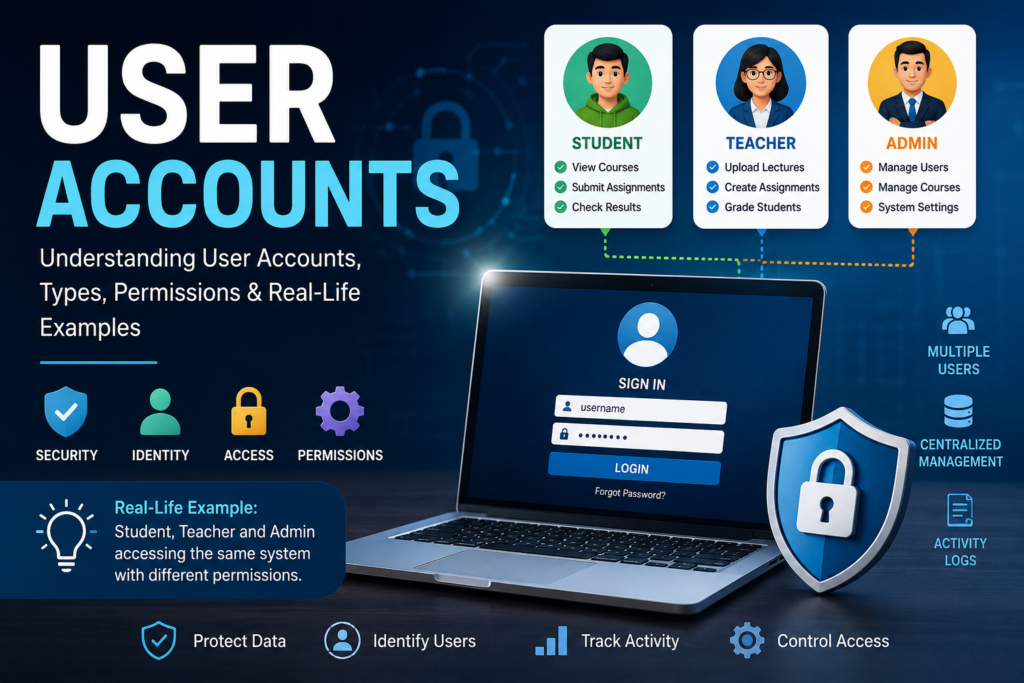
Example: School Learning Management System (LMS)
Imagine a school uses an LMS called IT Code Hub LMS.
There are three users:
Student
Username:
ali123
Can:
- View courses
- Download notes
- Submit assignments
- Check results
Cannot:
- Edit courses
- Create exams
Teacher
Username:
teacher01
Can:
- Upload lectures
- Create assignments
- Mark attendance
- Grade students
Cannot:
- Manage system settings
Administrator
Username:
admin
Can:
- Create student accounts
- Create teacher accounts
- Manage courses
- Assign permissions
- Generate reports
- Configure the LMS
Although all three users log into the same system, each sees different features because their user accounts have different permissions.
Another Example: Bank ATM
When you insert your ATM card and enter your PIN:
- The ATM identifies your account.
- It verifies your PIN.
- It checks your permissions.
- It allows only your account operations.
You cannot withdraw money from another customer’s account because each account is unique and protected.
Benefits of User Accounts
- Improved security
- Personalized user experience
- Controlled access to resources
- Accountability through activity logs
- Protection of sensitive information
- Easier management of multiple users
Best Practices for Secure User Accounts
- Use strong, unique passwords.
- Enable Multi-Factor Authentication (MFA) whenever available.
- Never share your password.
- Change passwords regularly.
- Lock your computer when away.
- Remove unused accounts.
- Grant only the permissions a user needs (principle of least privilege).
- Monitor account activity for suspicious logins.
Common Security Risks
- Weak passwords
- Password reuse
- Phishing attacks
- Shared accounts
- Unauthorized access
- Brute-force attacks
- Forgotten inactive accounts
Organizations reduce these risks through password policies, MFA, and regular security audits.
User Accounts in Different Operating Systems
If you need a trusted official download links section for Operating Systems, use these offical websites:
| Operating System | Official Download |
| Windows 11 | https://www.microsoft.com/software-download/windows11 |
| Windows 10 | https://www.microsoft.com/software-download/windows10 |
| Ubuntu Linux | https://ubuntu.com/download/desktop |
| Kali Linux | https://www.kali.org/get-kali/ |
| Linux Mint | https://linuxmint.com/download.php |
| Fedora Linux | https://fedoraproject.org/workstation/download |
| Debian | https://www.debian.org/distrib/ |
| Arch Linux | https://archlinux.org/download/ |
| openSUSE | https://www.opensuse.org/ |
| Rocky Linux | https://rockylinux.org/download |
| AlmaLinux | https://almalinux.org/get-almalinux/ |
| Oracle Linux | https://yum.oracle.com/oracle-linux-downloads.html |
| macOS | https://support.apple.com/en-us/102662 |
| ChromeOS Flex | https://chromeos.google/products/chromeos-flex/ |
| Android | https://source.android.com/docs/setup/download |
| FreeBSD | https://www.freebsd.org/where/ |
| OpenBSD | https://www.openbsd.org/ftp.html |
| NetBSD | https://www.netbsd.org/download/ |
Recommended heading for your website
Official Operating System Download Links
Important note:
Download operating systems only from their official websites or trusted project repositories. Avoid modified ISO files and unofficial download mirrors when possible.
Windows
Examples:
- Administrator
- Standard User
- Guest
Linux
Each user has:
- Username
- User ID (UID)
- Home directory
- Shell
- Group membership
Example:
Username: ahmed
UID: 1001
Home: /home/ahmed
Shell: /bin/bash
macOS
Supports:
- Administrator accounts
- Standard accounts
- Guest accounts
- Managed accounts
Conclusion
User accounts are an essential part of modern computing. They provide a secure way to identify users, protect data, and control access to digital resources. Whether you are using a personal computer, an online banking service, a university LMS, or a company’s internal network, user accounts ensure that each person can access only the information and features they are authorized to use. Proper account management and security practices help protect both individuals and organizations from unauthorized access and cyber threats.