Registry Basics Guide with Easy Examples
Introduction
The Windows Registry is one of the most important components of the Windows operating system. It acts as a central database that stores configuration settings for Windows, installed software, hardware devices, and user preferences.
Whenever Windows starts, opens a program, or connects to a device, it reads information from the Registry. Understanding the basics of the Registry helps users troubleshoot Windows issues, optimize settings, and better understand how the operating system works.
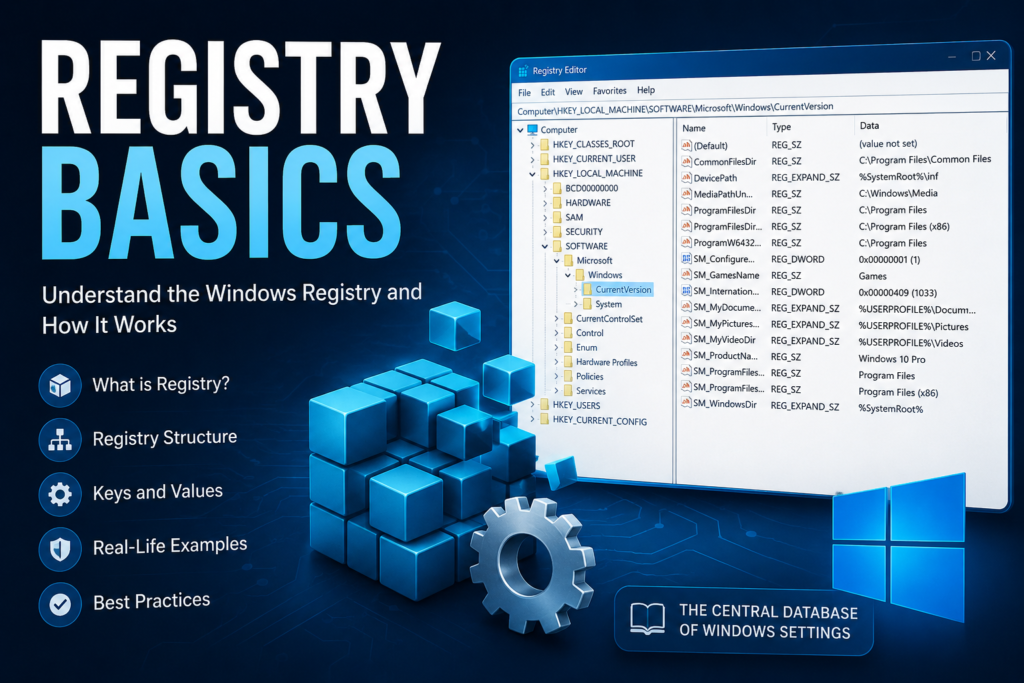
Table of Contents
What Is the Windows Registry?
The Windows Registry is a hierarchical database that stores:
- Operating system settings
- User account preferences
- Hardware configuration
- Installed software information
- File associations
- Startup programs
- Security settings
Instead of storing all settings in separate files, Windows keeps most of them inside the Registry for quick access.
Example
Imagine a public library.
- The library building represents Windows.
- Every book represents a program or hardware device.
- The catalog system stores information about every book, including:
- Location
- Author
- Category
- Availability
When someone searches for a book, the librarian checks the catalog before retrieving it.
The Windows Registry works the same way.
Whenever Windows needs information about a program or device, it checks the Registry first.
Without the catalog, finding books would take much longer. Likewise, without the Registry, Windows would have difficulty locating settings efficiently.
Why Is the Registry Important?
The Registry helps Windows:
- Boot correctly
- Remember user settings
- Launch installed applications
- Detect hardware
- Store driver information
- Save software configurations
- Control system behavior
Almost every action performed by Windows involves reading or writing Registry data.
Registry Structure
The Registry is organized like a folder structure.
Registry
│
├── HKEY_CLASSES_ROOT
├── HKEY_CURRENT_USER
├── HKEY_LOCAL_MACHINE
├── HKEY_USERS
├── HKEY_CURRENT_CONFIG
Each section stores different types of information.
Main Registry Hives
1. HKEY_CLASSES_ROOT (HKCR)
Stores information about:
- File extensions
- Program associations
- COM objects
- Shell commands
Example:
Windows knows that PDF files should open with Adobe Reader or another configured PDF application.
2. HKEY_CURRENT_USER (HKCU)
Contains settings for the currently logged-in user.
Examples:
- Desktop wallpaper
- Mouse settings
- Keyboard preferences
- Theme
- Printer preferences
If two people use the same computer, each has a separate HKCU configuration.
3. HKEY_LOCAL_MACHINE (HKLM)
Stores computer-wide settings.
Examples:
- Installed software
- Hardware information
- Drivers
- Windows configuration
- Services
Every user on the computer shares these settings.
4. HKEY_USERS (HKU)
Contains profiles for every user account on the computer.
Each user profile has its own Registry section.
5. HKEY_CURRENT_CONFIG (HKCC)
Stores information about the current hardware profile.
Examples:
- Display settings
- Printer configuration
- Hardware currently in use
Registry Keys and Values
The Registry is made up of:
- Keys
- Subkeys
- Values
Example:
HKEY_CURRENT_USER
└── Software
└── Microsoft
└── Windows
This is similar to:
Folder
└── Subfolder
└── File
Types of Registry Values
Common data types include:
REG_SZ
Stores text strings.
Example:
Username = John
REG_DWORD
Stores 32-bit numeric values.
Example:
DarkMode = 1
REG_QWORD
Stores 64-bit numbers.
REG_BINARY
Stores binary data.
Used by drivers and certain applications.
REG_MULTI_SZ
Stores multiple text strings.
Example:
Printer1
Printer2
Printer3
How Windows Uses the Registry
When Windows starts:
- Reads boot configuration.
- Loads drivers.
- Loads user profiles.
- Starts services.
- Applies personalization settings.
Every installed application also reads Registry values to determine its configuration.
Example: Installing Google Chrome
When Chrome is installed:
Windows adds Registry entries such as:
Installation Path
Default Browser Status
Version Number
Update Information
File Associations
Later, when you double-click an HTML file, Windows checks the Registry to determine which browser should open it.
Registry Editor (Regedit)
Windows includes a built-in Registry Editor.
Open it by:
Windows + R
Type:
regedit
Press Enter
The Registry Editor allows you to:
- Browse keys
- Create keys
- Edit values
- Delete entries
- Export backups
- Import Registry files
Example of a Registry Path
Computer
HKEY_LOCAL_MACHINE
SOFTWARE
Microsoft
Windows
CurrentVersion
This path contains information about the installed Windows version.
Registry Files (.reg)
Registry settings can be exported into .reg files.
Example:
Windows Registry Editor Version 5.00
[HKEY_CURRENT_USER\Software\Demo]
“Example”=”Hello”
Double-clicking the file imports these settings into the Registry.
Benefits of the Registry
- Centralized configuration database
- Faster access to settings
- Simplifies software management
- Stores user preferences
- Helps Windows manage hardware
- Supports application configuration
Risks of Editing the Registry
Incorrect Registry modifications can:
- Prevent Windows from booting
- Break installed applications
- Disable hardware
- Cause system instability
- Lead to data loss
Always create a backup before making changes.
Best Practices
- Back up the Registry before editing.
- Modify only settings you understand.
- Avoid downloading Registry tweaks from untrusted websites.
- Create a System Restore point before major changes.
- Use administrator privileges only when necessary.
Common Registry Uses
System administrators and power users often use the Registry to:
- Enable or disable Windows features
- Customize the desktop
- Manage startup programs
- Configure security settings
- Troubleshoot software issues
- Deploy settings across multiple computers
Quick Comparison
| Registry | File System |
| Stores configuration settings | Stores files and folders |
| Organized into keys and values | Organized into folders and files |
| Used by Windows and applications | Used by users and applications |
| Central configuration database | Data storage system |
Conclusion
The Windows Registry is the operating system’s central configuration database. It stores information about Windows, hardware, applications, and user preferences in a structured hierarchy of keys and values. By understanding the Registry’s purpose and structure, users can better troubleshoot problems and manage Windows settings. However, because it plays a critical role in system operation, Registry changes should always be made carefully and only after creating a backup.
FAQ
Is the Windows Registry a file?
The Registry is stored in several system files (called hives) on disk, but Windows presents them as one unified database through the Registry Editor.
Can I delete Registry entries to make my PC faster?
Randomly deleting Registry entries is not recommended. It rarely improves performance and can cause software or Windows to malfunction.
Is it safe to edit the Registry?
Yes, if you know exactly what you’re changing and have created a backup first. Otherwise, changes can have unintended consequences.
Does uninstalling a program remove all Registry entries?
Not always. Some applications leave behind configuration keys, which is generally harmless but can accumulate over time.