Shell Basics Explained A Complete Guide with Examples
Introduction
A shell is a command line interface (CLI). That allows users to interact with an operating system. Instead of clicking buttons and menus like in a graphical interface (GUI), you type commands to perform specific tasks.
The shell acts as a bridge between the user and the operating system’s kernel. It receives your commands, processes them, and tells the operating system what to do.
Whether you’re learning Linux, cybersecurity, DevOps, cloud computing, or programming, understanding shell basics is one of the most valuable skills you can acquire.
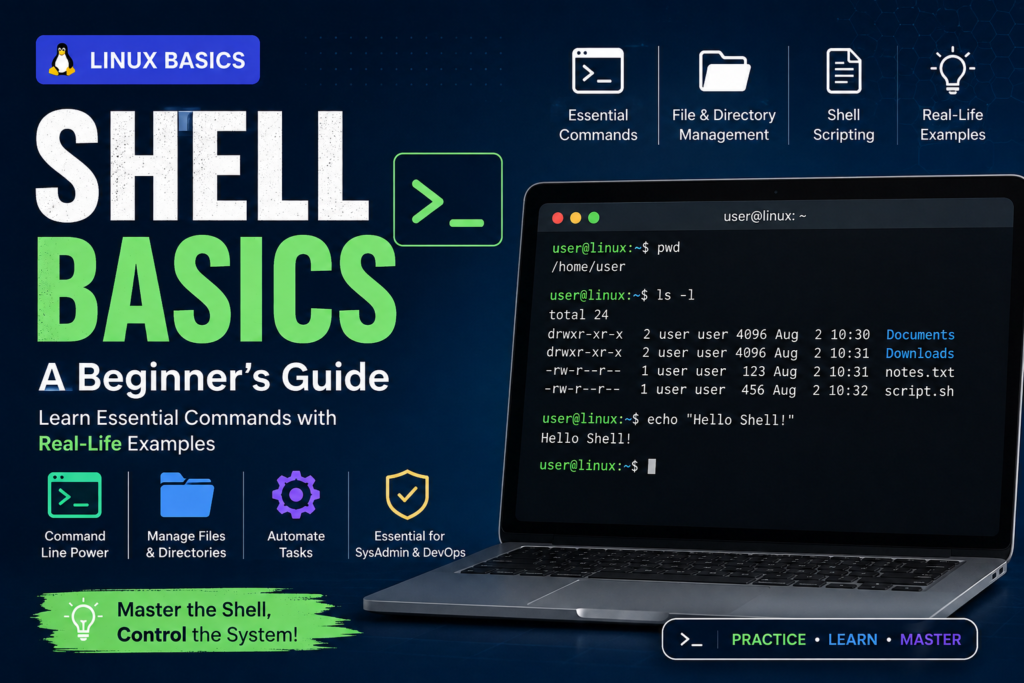
Table of Contents
What Is a Shell?
A shell is a program that interprets commands entered by a user.
It reads your command, executes it, and displays the result.
Example:
date
Output:
Sat Aug 2 16:45:12 PKT 2026
The shell receives the date command, asks the operating system for the current time, and prints it on the screen.
Example
Imagine visiting a restaurant.
- You are the customer.
- The waiter is the shell.
- The kitchen is the operating system (kernel).
The customer does not enter the kitchen directly.
Instead:
- The customer gives the order.
- The waiter delivers it to the kitchen.
- The kitchen prepares the meal.
- The waiter brings it back.
Similarly,
User
↓
Shell
↓
Operating System
↓
Result
The shell acts as the waiter between you and the operating system.
Why Do We Need a Shell?
Without a shell, communicating with the operating system would be difficult.
The shell makes it easy to:
- Create files
- Delete files
- Copy folders
- Install software
- Run programs
- Manage users
- Control servers
- Automate tasks
Types of Shells
Several shell programs are available in Linux.
1. Bash (Bourne Again Shell)
The most popular Linux shell.
Features:
- Easy to learn
- Powerful scripting
- Widely supported
- Default on many Linux distributions
Example:
echo “Hello World”
2. Zsh (Z Shell)
An advanced shell with powerful features.
Advantages:
- Better auto-completion
- Themes
- Plugins
- Faster workflow
Popular among developers.
3. Fish Shell
Fish stands for Friendly Interactive Shell.
Features:
- Colorful output
- Smart suggestions
- Beginner-friendly interface
4. Korn Shell (ksh)
Common in enterprise UNIX systems.
Suitable for scripting and automation.
5. C Shell (csh)
Designed with syntax similar to the C programming language.
Opening the Terminal
The shell runs inside a Terminal Commands.
Examples:
Ubuntu:
Ctrl + Alt + T
Kali Linux:
Search for Terminal
macOS:
Terminal.app
Windows:
- PowerShell
- Windows Terminal
- Git Bash
- WSL
Basic Shell Commands
pwd
Shows your current working directory.
pwd
Example output:
/home/student
ls
Lists files and folders.
ls
Example:
Documents
Downloads
Desktop
Pictures
ls -l
Shows detailed information.
ls -l
Output includes:
- Permissions
- Owner
- Size
- Date
- Filename
cd
Changes directories.
cd Documents
Return to the home directory:
cd ~
Go back one directory:
cd ..
mkdir
Creates a directory.
mkdir Projects
rmdir
Removes an empty directory.
rmdir Projects
touch
Creates a new file.
touch notes.txt
cp
Copies files.
cp notes.txt backup.txt
mv
Moves or renames files.
Rename:
mv notes.txt mynotes.txt
Move:
mv mynotes.txt Documents/
rm
Deletes files.
rm mynotes.txt
Delete a directory and its contents:
rm -r FolderName
⚠️ Warning: Deleted files cannot usually be recovered easily.
clear
Clears the terminal screen.
clear
echo
Displays text.
echo “Welcome to Linux”
cat
Displays file contents.
cat notes.txt
whoami
Shows the current logged-in user.
whoami
Example:
student
uname
Displays system information.
uname -a
history
Shows previously executed commands.
history
File Paths
Linux uses a hierarchical file system.
Example:
/
├── home
│ └── student
│ └── Documents
├── etc
├── var
└── usr
Example path:
/home/student/Documents
Absolute vs Relative Paths
Absolute Path
Starts from the root directory.
Example:
/home/student/Documents/file.txt
Relative Path
Starts from the current directory.
Example:
Documents/file.txt
Command Syntax
Most commands follow this structure:
command [options] [arguments]
Example:
ls -l Documents
Where:
- ls → command
- -l → option
- Documents → argument
Using Command History
Press:
↑
to recall previous commands.
Search history:
Ctrl + R
Tab Auto-Completion
Instead of typing:
Documents
Type:
Doc
Then press:
Tab
The shell completes the name automatically.
Command Chaining
Execute multiple commands:
pwd && ls
The second command runs only if the first succeeds.
Redirecting Output
Save command output to a file:
ls > files.txt
Append instead of overwrite:
ls >> files.txt
Piping Commands
Use the output of one command as the input to another.
ls | grep “.txt”
This displays only .txt files.
Environment Variables
Display your home directory:
echo $HOME
Display your username:
echo $USER
Shell Scripts
A shell script is a file containing multiple shell commands.
Example:
#!/bin/bash
echo “Welcome”
date
pwd
Save as:
welcome.sh
Make it executable:
chmod +x welcome.sh
Run it:
./welcome.sh
Practical Exercise
Create a practice folder:
mkdir ShellPractice
Enter it:
cd ShellPractice
Create files:
touch file1.txt file2.txt
View files:
ls
Copy a file:
cp file1.txt backup.txt
Rename it:
mv backup.txt notes.txt
Display contents:
cat notes.txt
Delete the files:
rm file1.txt file2.txt notes.txt
Return to the previous directory:
cd ..
Remove the empty folder:
rmdir ShellPractice
Best Practices
- Use pwd frequently to know your location.
- Double-check file names before deleting them.
- Prefer cp to create backups before making major changes.
- Use history to review previous commands.
- Learn keyboard shortcuts like Tab and Ctrl + R to work efficiently.
- Avoid using sudo unless necessary.
Shell Common Mistakes
- Running rm -r in the wrong directory.
- Forgetting file extensions.
- Confusing absolute and relative paths.
- Misspelling commands.
- Executing commands without understanding their effects.
Conclusion
- A shell is the command-line interface between the user and the operating system.
- Bash is the most commonly used Linux shell.
- Basic commands like pwd, ls, cd, mkdir, touch, cp, mv, and rm are essential for daily work.
- Features such as command history, piping, redirection, and shell scripting make the shell a powerful productivity tool.
- Mastering shell basics is a foundational step toward Linux administration, cybersecurity, DevOps, cloud computing, and software development.
FAQ
What is a shell in Linux?
A shell is a command-line interpreter that accepts user commands and communicates with the operating system to execute them.
What is the difference between a shell and a terminal?
A terminal is the application you use to access the shell. The shell is the program that interprets and executes your commands.
Which shell is best for beginners?
Bash is the best starting point because it is widely available, well documented, and commonly used across Linux distributions.
Why should I learn shell commands?
Shell commands help you manage files, automate repetitive tasks, administer servers, and work more efficiently in Linux environments.
Can I use the shell on Windows?
Yes. You can use Windows PowerShell, Windows Terminal, Git Bash, or the Windows Subsystem for Linux (WSL) to work with shell commands.