Group Policy Complete Guide with Easy Examples
What is Group Policy?
Group Policy is a feature in Microsoft Windows Server that allows system administrators to centrally manage, configure, and enforce settings for computers and users in an Active Directory (AD) environment.
Instead of configuring every computer individually, an administrator can create a policy once and automatically apply it to hundreds or even thousands of computers.
Think of Group Policy as a set of rules that Windows computers must follow.
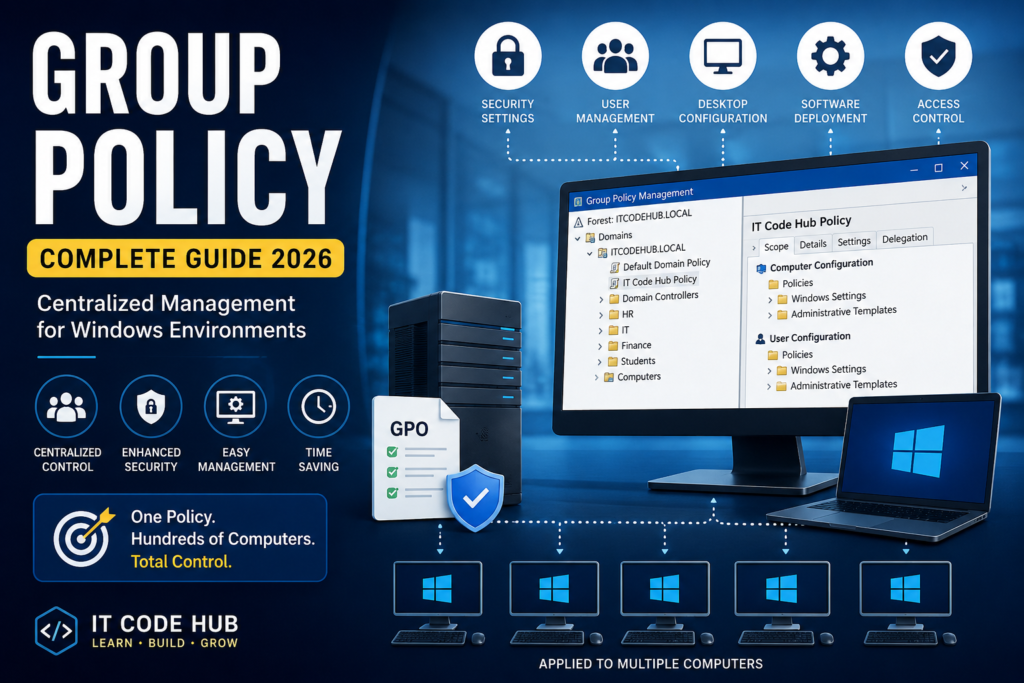
Simple Definition
Group Policy is a centralized management tool that controls the behavior and security settings of users and computers in a Windows domain.
Table of Contents
Why is Group Policy Important?
Without Group Policy:
- Every PC must be configured manually.
- Security settings may differ.
- Users can change important configurations.
- Managing large organizations becomes difficult.
With Group Policy:
- All computers follow the same rules.
- Security improves.
- Administration becomes easier.
- Time is saved.
Example
Spouse that you own a school with 500 computers.
You don’t want students to:
- Install games
- Change desktop wallpaper
- Access Command Prompt
- Use USB drives
- Change system date and time
Doing this manually on 500 computers would take days.
Instead:
- Open Group Policy Management.
- Create one policy.
- Apply it to the Students Organizational Unit (OU).
Within minutes:
✔ Every student computer follows the same rules.
This is the power of Group Policy.
Another Example (Office)
A company has:
- 250 Employees
- 250 Computers
The IT department wants to:
- Change everyone’s desktop wallpaper
- Install Microsoft Office
- Disable USB storage
- Require complex passwords
- Lock computers after 10 minutes
- Automatically map network drives
Instead of visiting every computer, the administrator creates one Group Policy.
When employees log in, every setting is applied automatically.
How Group Policy Works
Administrator
│
▼
Create Group Policy
│
▼
Active Directory
│
▼
Domain Controller
│
▼
Client Computers
Whenever users log in or computers start, they receive the latest policy from the domain controller.
Types of Group Policy
1. Local Group Policy
Applies to one computer only.
Example:
You configure settings on your personal laptop.
Path:
gpedit.msc
2. Domain Group Policy
Applies to multiple computers in an Active Directory domain.
Example:
A university applies one password policy to all staff computers.
Group Policy Objects (GPO)
A Group Policy Object (GPO) is a collection of settings that can be linked to:
- Site
- Domain
- Organizational Unit (OU)
Example:
Company Domain
│
├── HR
├── Finance
├── IT
└── Sales
Each department can have different policies.
User Configuration vs Computer Configuration
User Configuration
Applies to users regardless of the computer they use.
Examples:
- Desktop wallpaper
- Start Menu
- Control Panel restrictions
- Folder Redirection
Computer Configuration
Applies to the computer regardless of who logs in.
Examples:
- Windows Firewall
- Windows Update
- BitLocker
- Device restrictions
Common Group Policy Settings
Password Policy
Example:
Minimum Length:
12 Characters
Password Expiry:
90 Days
Account Lockout:
5 Failed Attempts
Disable USB Storage
Useful in:
- Banks
- Hospitals
- Government offices
Benefits:
- Prevents data theft
- Blocks malware
- Improves security
Restrict Control Panel
Prevent users from changing:
- Date & Time
- Network settings
- Installed programs
- User accounts
Desktop Wallpaper
Many organizations enforce a company wallpaper.
Example:
IT Code Hub
“Learn • Build • Grow”
Every employee sees the same desktop background.
Windows Updates
Administrators can:
- Schedule updates
- Delay updates
- Force installation
- Restart computers automatically after business hours
Software Installation
Software like:
- Google Chrome
- Microsoft Office
- Adobe Reader
- Zoom
can be deployed automatically to all domain computers.
Folder Redirection
Folders such as:
- Desktop
- Documents
- Downloads
can be redirected to a file server.
Benefits:
- Easier backups
- Access files from different computers
- Better data protection
Group Policy Processing Order
Windows applies policies in the following order:
Local
↓
Site
↓
Domain
↓
Organizational Unit (OU)
This order is commonly remembered using the acronym LSDOU:
- L = Local
- S = Site
- D = Domain
- OU = Organizational Unit
If multiple policies conflict, the policy processed later generally has higher precedence, although inheritance, enforcement, and block inheritance can affect the final result.
Useful Group Policy Commands
Open Local Group Policy Editor
gpedit.msc
Update Policies Immediately
gpupdate /force
View Applied Policies
gpresult /r
Generate an HTML Policy Report
gpresult /h report.html
Advantages of Group Policy
- Centralized management
- Improved security
- Saves administrative time
- Standardized configurations
- Reduces user errors
- Supports compliance requirements
- Simplifies software deployment
- Easy to manage large environments
Disadvantages of Group Policy
- Requires Active Directory for domain-wide management
- Misconfigured policies can impact many users at once
- Complex policy structures can be difficult to troubleshoot
- Some settings may take time to apply until policy refresh or reboot
Best Practices
- Use Organizational Units (OUs) to organize users and computers logically.
- Apply the principle of least privilege.
- Test new GPOs in a lab or test OU before production.
- Name GPOs clearly (for example, “Finance – Password Policy”).
- Document all important policies.
- Remove unused or obsolete GPOs regularly.
- Use security filtering and WMI filters only when necessary.
Key Takeaways
Group Policy is one of the most powerful administration tools in Windows Server environments. It allows IT administrators to manage security, user settings, software deployment, updates, and many other configurations from a central location. Whether managing a school, office, university, hospital, or enterprise, Group Policy helps maintain consistency, strengthen security, and reduce administrative effort.
By understanding GPOs, Active Directory, Organizational Units, and the LSDOU processing order, administrators can efficiently manage hundreds or even thousands of Windows computers with minimal manual intervention.