BIOS vs UEFI What They Are, How They Work, and Their Key Differences 2026
Learn what BIOS and UEFI are, how they work, their differences, advantages, and real-life examples. A beginner-friendly guide with FAQs.
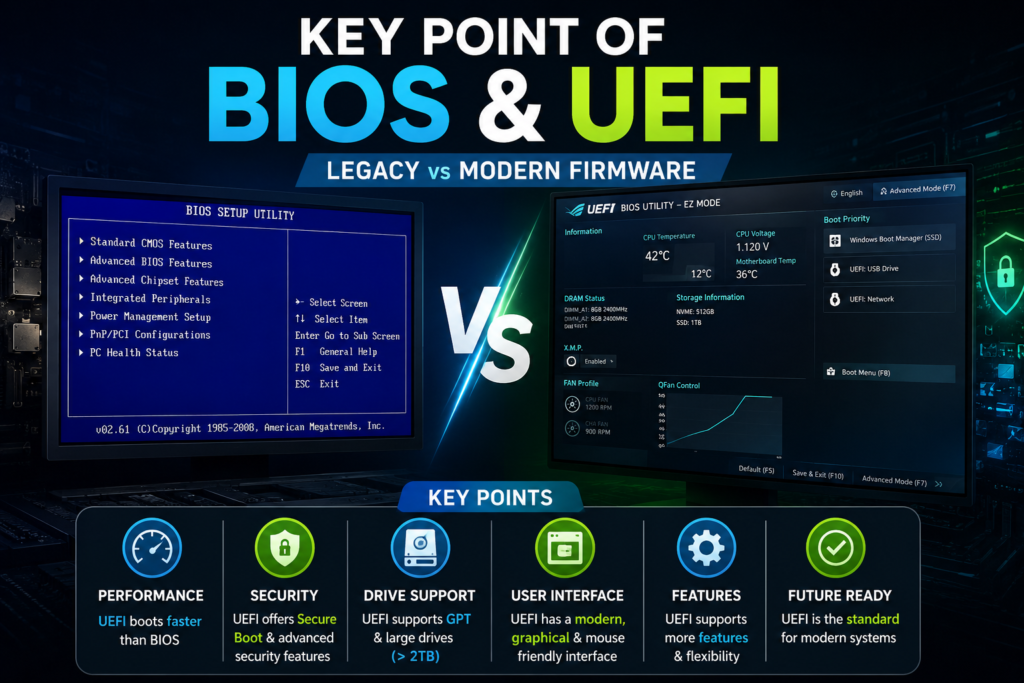
Table of Contents
What are BIOS and UEFI?
When you press the power button on your computer, many important processes happen before Windows or Linux starts. The software responsible for preparing your computer to boot is called firmware.
The two main types of firmware are:
- BIOS (Basic Input/Output System)
- UEFI (Unified Extensible Firmware Interface)
Both work the same basic work is starting the computer and loading the operating system. But UEFI is the modern replacement of BIOS which provides more advanced features.
What Is BIOS?
BIOS stands for Basic Input/Output System is a firmware which is stored on a chip that exists on the motherboard. It initializes hardware components and loads the operating system. When the computer is turned on.
BIOS Performs the Following Tasks
- Checks whether the hardware is working properly.
- Detects the CPU, RAM, keyboard, storage drives, and other devices.
- Performs the Power On Self-Test (POST).
- Find a bootable storage device.
- Loads the operating system into memory.
BIOS has been used in personal computers since the 1980s and it will remain the standard for many years.
Example of BIOS
For example a school principal arriving before students.
Before starting classes, the principal:
- Unlocks the school.
- Check the classrooms are ready.
- Ensures teachers have arrived.
- Confirms everything is working properly.
Only after these checks do students enter and start the classes.
Similarly, BIOS checks your computer’s hardware before allowing Windows or Linux to start.
What Is UEFI?
UEFI stands for Unified Extensible Firmware Interface is the modern firmware that replaces traditional BIOS.
It performs as well as BIOS startup tasks. But it is much faster, more secure, and supports then BIOS. Today’s hardware and large storage devices.
Most computers manufactured in recent years use UEFI instead of legacy BIOS.
Example of UEFI
Think of a modern airport.
Instead of manually checking every passenger, the airport uses:
- Automated security gates
- Passport scanners
- Digital boarding systems
- Security verification
- Fast baggage handling
Everything is quicker, safer, and more organized.
UEFI also works in the same way by providing a faster and more secure startup process than BIOS.
How BIOS Works
The BIOS startup process follows these steps:
- You press the power button.
- BIOS receives power.
- POST (Power-On Self-Test) begins.
- Hardware is checked.
- BIOS searches for a boot device.
- The operating system loader is launched.
- Windows or Linux starts.
How UEFI Works
UEFI follows a similar process but includes additional capabilities.
- The power button is pressed.
- UEFI initializes hardware.
- Security checks (Secure Boot) are performed.
- Boot Manager locates the operating system.
- The operating system starts.
This process is generally faster than traditional BIOS.
BIOS vs UEFI
| Feature | BIOS | UEFI |
| Full Name | Basic Input/Output System | Unified Extensible Firmware Interface |
| Introduced | 1980s | Modern standard |
| User Interface | Simple text-based | Graphical interface with mouse support (on many systems) |
| Boot Speed | Slower | Faster |
| Maximum Drive Size | Up to about 2 TB (with MBR) | Supports drives larger than 2 TB (using GPT) |
| Security | Basic | Secure Boot support |
| Partition Style | MBR | GPT |
| Mouse Support | Usually No | Usually Yes |
| Performance | Older technology | Modern and efficient |
Advantages of BIOS
- Works well with older hardware.
- Simple and lightweight.
- Compatible with many legacy operating systems.
- Stable for older computers.
Disadvantages of BIOS
- Slower boot process.
- Limited storage support.
- Uses the older MBR partition scheme.
- No Secure Boot.
- Limited user interface.
Advantages of UEFI
- Faster startup.
- Supports very large hard drives and SSDs.
- Uses GPT partitioning.
- Enhanced security with Secure Boot.
- Modern graphical interface.
- Better hardware compatibility.
- Easier firmware updates.
Disadvantages of UEFI
- Some older operating systems may not support it.
- Certain legacy software may require Legacy BIOS (CSM) mode.
- Advanced settings can be confusing for beginners.
What Is POST?
POST stands for Power-On Self-Test.
It is the first diagnostic test performed when the computer starts.
During POST, the firmware checks components such as:
- CPU
- RAM
- Graphics hardware
- Keyboard
- Storage devices
- Cooling fans
If a problem is detected, the computer may display an error message or emit beep codes.
What Is a Secure Boot?
Secure Boot is a security feature that is available with UEFI.
It helps protect your computer by allowing only trusted, digitally signed software to run during startup. This reduces the risk of certain types of malware. Such as bootkits, from loading before the operating system.
MBR vs GPT
MBR (Master Boot Record)
- Used with BIOS.
- Supports up to approximately 2 TB drives.
- Allows fewer primary partitions.
GPT (GUID Partition Table)
- Used with UEFI.
- Supports much larger drives.
- Allows many more partitions.
- Includes redundancy for improved reliability.
How to Check Whether Your PC Uses BIOS or UEFI
On Windows
- Press Windows + R.
- Type msinfo32.
- Press Enter.
- Look for BIOS Mode.
Possible results:
- UEFI = Your computer uses UEFI.
- Legacy = Your computer uses BIOS (or Legacy BIOS mode).
Should You Choose BIOS or UEFI?
For most users, UEFI is the recommended choice because it offers are:
- Faster boot times
- Better security
- Support for modern hardware
- Compatibility with large storage devices
- Improved overall performance
Legacy BIOS is mainly useful for older computers or when specific legacy software requires it.
Conclusion
BIOS and UEFI are both essential firmware technologies. That prepares your computer to start the operating system.
BIOS laid the foundation for PC startup for decades. But UEFI has become the modern standard thanks to faster boot times, stronger security features, support for large drives, and improved hardware compatibility.
For anyone purchasing or building a new computer, UEFI is generally the preferred option. Because it provides a more secure and efficient startup experience.
FAQ
Is BIOS still used today?
Yes. Some older computers still use BIOS, while many newer systems use UEFI or provide a Legacy BIOS compatibility mode.
Is UEFI faster than BIOS?
Yes. UEFI generally boots faster because it uses a more modern startup process and supports optimized hardware initialization.
Can I switch from BIOS to UEFI?
Yes, in some cases. However, switching often requires converting the system disk from MBR to GPT and changing firmware settings. Always back up important data before making such changes.
Is UEFI more secure?
Yes. Features such as Secure Boot help verify trusted boot software and can improve startup security.
Which partition style does UEFI use?
UEFI typically uses GPT (GUID Partition Table).