Windows Architecture
Microsoft Windows is one of the world’s most widely used operating systems. It provides an interface between users, applications, and computer hardware. Windows Architecture is designed to be modular, secure, stable, and scalable, allowing thousands of applications and hardware devices to work together efficiently.
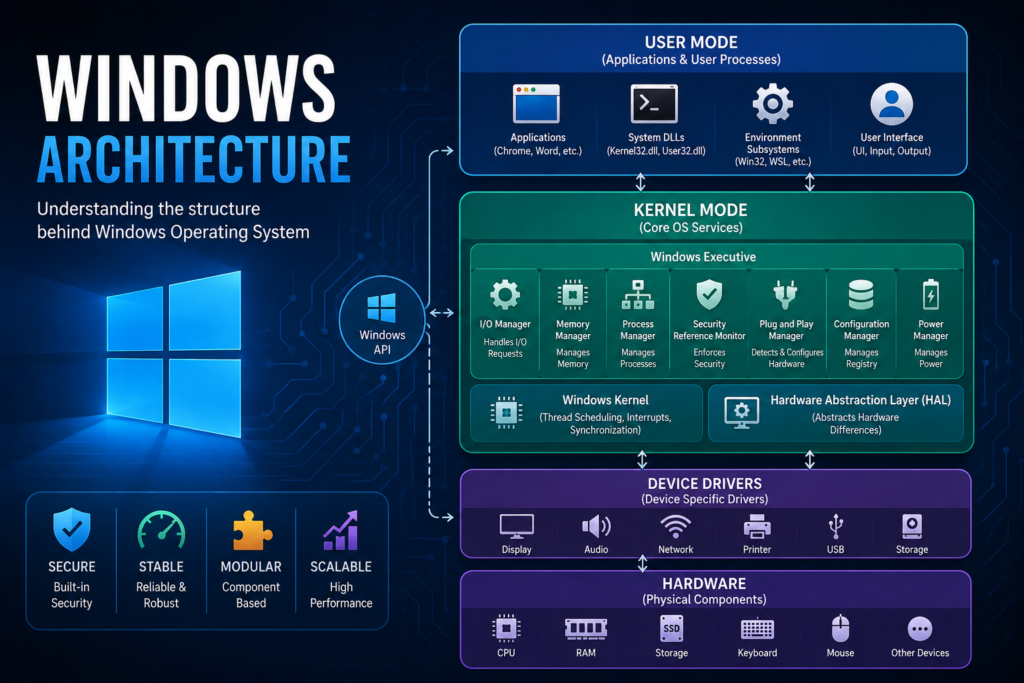
Table of Contents
Understanding Windows Architecture is essential for:
- System Administrators
- Cyber Security Professionals
- Ethical Hackers
- Software Developers
- IT Students
- Computer Engineers
What is Windows Architecture?
Windows Architecture is the internal structure of the Windows operating system that manages communication between software and hardware.
It controls:
- Memory
- CPU Scheduling
- Input and Output
- File System
- Device Drivers
- Security
- Networking
- Process Management
Think of Windows Architecture as the brain of a computer that coordinates every operation.
Example
Imagine a large international airport.
Different departments perform different tasks:
- Passengers use airport services.
- Airlines manage flights.
- Security checks everyone.
- Air Traffic Control manages aircraft.
- Ground staff handle baggage.
- Engineers maintain equipment.
Passengers never communicate directly with aircraft engines or runways.
Instead, every request goes through authorized departments.
Windows works exactly the same way.
Applications never communicate directly with the hardware. Instead, Windows controls every request securely.
| Airport | Windows |
| Passenger | User |
| Airport Staff | Applications |
| Security | Windows Security |
| Air Traffic Control | Kernel |
| Ground Engineers | Device Drivers |
| Runway | Hardware |
Windows Architecture Layers
Windows Architecture is divided into two major modes.
+——————————–+
| User Mode |
+——————————–+
| Kernel Mode |
+——————————–+
| Hardware |
+——————————–+
1. User Mode
User Mode is where normal applications run.
Examples include:
- Microsoft Word
- Chrome
- Firefox
- Photoshop
- VLC
- Calculator
- Games
Applications in User Mode have limited privileges.
If one application crashes, Windows usually keeps running because the application cannot directly damage the operating system.
Responsibilities
- Run applications
- Display user interface
- Handle user input
- Call Windows APIs
- Request operating system services
User Mode Components
Applications
These are programs users install and execute.
Examples:
- Microsoft Office
- Zoom
- Visual Studio Code
- WhatsApp Desktop
Environment Subsystems
These provide compatibility for different application environments.
Examples:
- Win32
- POSIX (older versions)
- Windows Subsystem for Linux (WSL)
System DLLs
Applications communicate with Windows using Dynamic Link Libraries (DLLs).
Common DLLs include:
- Kernel32.dll
- User32.dll
- GDI32.dll
- Advapi32.dll
These libraries translate application requests into system calls.
2. Kernel Mode
Kernel Mode has full access to all hardware and system resources.
Only trusted operating system components run here.
If something critical fails in Kernel Mode, Windows may display the Blue Screen of Death (BSOD).
Responsibilities include:
- Memory Management
- CPU Scheduling
- Security
- Hardware Communication
- Device Management
- Interrupt Handling
Kernel Mode Components
Windows Executive
The Executive provides high-level operating system services.
Major components include:
Process Manager
Creates and terminates processes.
Example:
When you open Google Chrome, the Process Manager creates a new process.
Memory Manager
Allocates and manages RAM.
Example:
If Chrome needs 500 MB of RAM, the Memory Manager reserves it.
I/O Manager
Handles communication between applications and hardware devices.
Example:
When you save a file, the I/O Manager sends the request to the storage device.
Security Reference Monitor
Enforces Windows security.
It checks:
- User permissions
- Access rights
- Authentication
- Security policies
Example:
A standard user cannot modify protected system files without administrator privileges.
Plug and Play Manager
Detects new hardware automatically.
Example:
When you connect a USB mouse, Windows detects it and loads the appropriate driver.
Power Manager
Controls power usage.
Responsibilities include:
- Sleep
- Hibernate
- Shutdown
- Battery optimization
Configuration Manager
Manages the Windows Registry.
The Registry stores:
- System settings
- User preferences
- Installed software information
Windows Kernel
The Kernel is the core of Windows.
It manages:
- Thread Scheduling
- Interrupts
- Synchronization
- Processor Communication
Think of it as the chief operating officer of the operating system.
Hardware Abstraction Layer (HAL)
HAL stands for Hardware Abstraction Layer.
It hides hardware-specific details from the operating system.
Without HAL, Windows would need separate code for every motherboard and processor.
HAL provides a standard interface to hardware.
Example
Suppose Windows runs on:
- Intel CPU
- AMD CPU
- ARM Processor
HAL ensures Windows communicates with each platform consistently.
Device Drivers
Drivers connect Windows with hardware.
Examples:
- Printer Driver
- Graphics Driver
- Sound Driver
- Network Driver
- USB Driver
Without drivers, Windows cannot use hardware properly.
Hardware Layer
The lowest layer contains physical components such as:
- CPU
- RAM
- SSD
- HDD
- Keyboard
- Mouse
- GPU
- Network Card
- Monitor
- USB Devices
Everything ultimately interacts with hardware through Windows.
Windows API
Applications do not access hardware directly.
Instead, they call the Windows API.
Example:
Application
↓
Windows API
↓
Kernel
↓
Driver
↓
Hardware
This design improves stability and security.
Windows System Call Flow
When a user saves a document:
- User clicks Save.
- Microsoft Word calls the Windows API.
- The API generates a system call.
- The Kernel receives the request.
- The I/O Manager processes it.
- The storage driver writes data to the SSD or HDD.
- Windows returns a success message.
The application never writes directly to the disk.
Windows Boot Process
The Windows startup sequence generally follows these steps:
- Power On
- BIOS or UEFI initializes hardware.
- Windows Boot Manager starts.
- Windows Loader loads the operating system.
- Kernel initializes.
- HAL loads.
- Device Drivers load.
- Session Manager starts.
- Login screen appears.
- Desktop is displayed after user authentication.
Security in Windows Architecture
Windows includes multiple layers of protection:
- User Mode isolation
- Kernel Mode protection
- Access Control Lists (ACLs)
- Windows Defender
- Driver signing
- Secure Boot
- BitLocker
- User Account Control (UAC)
- Virtualization-Based Security (VBS)
These features help prevent unauthorized access and malware from compromising the system.
Advantages of Windows Architecture
- Modular and organized design
- Stable application execution
- Strong hardware compatibility
- High security through privilege separation
- Efficient memory management
- Broad driver support
- Multi-user capability
- Multitasking support
- Easy scalability
Limitations
- Faulty kernel-mode drivers can crash the system.
- Driver compatibility issues may occur with older hardware.
- Some advanced security features require modern hardware.
- Windows uses significant system resources compared to some lightweight operating systems.
Key Components Summary
| Component | Function |
| User Mode | Runs applications with limited privileges |
| Kernel Mode | Controls hardware and core OS functions |
| Windows Executive | Provides system services |
| Kernel | Manages CPU scheduling and interrupts |
| HAL | Abstracts hardware differences |
| Device Drivers | Enable communication with hardware |
| Memory Manager | Allocates and protects RAM |
| I/O Manager | Handles input/output operations |
| Process Manager | Creates and manages processes |
| Security Reference Monitor | Enforces security policies |
| Plug and Play Manager | Detects and configures hardware |
Conclusion
Windows Architecture is built on a layered design that separates applications from critical system components. By dividing execution into User Mode and Kernel Mode, Windows enhances stability, security, and performance. Components such as the Windows Executive, Kernel, Hardware Abstraction Layer (HAL), and Device Drivers work together to manage hardware resources, execute applications, and protect the operating system.
The airport example illustrates this concept well: just as passengers cannot directly control aircraft or runway operations, applications cannot directly access hardware. Instead, Windows acts as the trusted coordinator, ensuring every request is processed safely and efficiently.
Whether you are studying operating systems, preparing for cybersecurity certifications, or developing Windows applications, understanding Windows Architecture provides a strong foundation for exploring how modern computer systems operate.