Malware Analysis Tools
Malware analysis tools help cybersecurity professionals understand how malicious software works, how it affects a computer, and how it communicates with other systems. These tools help security analysts identify suspicious files, monitor program activity, examine network connections, and investigate malware attacks.
For example, suppose an employee downloads a suspicious file from an unknown website. A security analyst can use different malware analysis tools to examine the file, check its code, monitor its behavior, and determine whether it poses a security risk.
Each tool has a different purpose. Some tools examine files without running them, while others monitor programs during execution or investigate computer memory and network traffic.
Malware Analysis Tools List
PEStudio
What Is PEStudio
PEStudio is a tool used to examine Windows executable files without running them. It helps security analysts find information that may indicate suspicious or malicious behavior.
Main Features of PEStudio
PEStudio provides information about executable files, imported functions, strings, libraries, and other file properties. It can also highlight characteristics that deserve further investigation.
Analysts use this information to understand the structure of a program before deciding whether to perform additional analysis.
Example
Suppose an employee downloads a software installer from an unfamiliar website. Before running it, a security analyst opens the file in PEStudio.
The tool identifies several functions related to network communication and process creation. The analyst investigates these findings to determine whether the program behaves like legitimate software or requires further examination.
These findings alone do not prove that the file is malicious because legitimate applications can use the same functions.
Detect It Easy
What Is Detect It Easy
Detect It Easy, also called DIE, is a tool used to identify executable file types, compilers, packers, and other characteristics of program files.
Malware authors sometimes use packing techniques to make their programs more difficult to examine. Detect It Easy can help analysts identify signs of these techniques.
Main Features of Detect It Easy
The tool can identify supported executable formats, provide compiler information, and detect many common packers.
This information helps analysts decide which techniques and tools may be useful for further investigation.
Example
A student receives an unknown Windows executable. When the student examines the file, very few readable strings are visible.
The student opens the file in Detect It Easy and discovers signs that the executable has been packed. The student records this finding and decides to investigate the file further.
Packing does not automatically mean that a program is malicious. Many legitimate software applications also use packing.
FLOSS
What Is FLOSS
FLOSS is a command line tool developed by Mandiant. It extracts readable strings from executable files and helps analysts discover text that may be hidden through encoding or obfuscation.
Strings may include website addresses, file paths, commands, error messages, and other information stored inside a program.
Main Features of FLOSS
FLOSS can extract ordinary strings and identify several types of obfuscated strings. This makes it useful when a program hides information that basic string extraction tools may not reveal.
Example
A security analyst investigates a suspicious program that may communicate with a remote server. A basic strings utility does not reveal a clear website address.
The analyst uses FLOSS and discovers a suspicious domain in the extracted strings. The analyst records the domain and investigates it using additional security tools.
Finding a domain inside a program does not prove that the program actually contacted it. Network analysis can help confirm whether communication occurred.
Strings and Hashing Utilities
What Are Strings Utilities
Strings utilities extract readable text from files. They help analysts find useful information inside executable programs without running them.
The extracted text may include file paths, website addresses, registry locations, commands, and messages.
What Are Hashing Utilities
Hashing utilities calculate a digital fingerprint of a file. Common hashing algorithms include MD5, SHA1, and SHA256.
Security analysts commonly use SHA256 to identify files and compare them with known samples. If two files have the same SHA256 hash, they have matching contents with extremely high confidence.
Example
A company discovers a suspicious executable on an employee’s computer. The security analyst calculates its SHA256 hash and compares it with the company’s malware records.
The hash matches a previously identified malicious file. This information helps the security team investigate the incident and determine which other systems may need checking.
A file with an unknown hash is not necessarily safe. New or modified malware may not appear in existing records.
Ghidra
What Is Ghidra
Ghidra is a reverse engineering tool developed by the National Security Agency. It helps analysts understand compiled programs when their original source code is unavailable.
It includes tools for examining machine instructions and converting them into a more readable representation of program logic.
Main Features of Ghidra
Ghidra helps analysts examine functions, follow program logic, inspect instructions, and investigate suspicious operations.
It is especially useful when an analyst needs to understand what a program does internally rather than simply examining its visible strings.
Example
A security researcher suspects that a program collects information from a computer.
The researcher opens the executable in Ghidra and examines functions related to file access and Windows system calls. By following the relevant code, the researcher develops a better understanding of the program’s possible behavior.
Ghidra cannot always reconstruct the original source code perfectly. Analysts must interpret the results carefully.
IDA Free
What Is IDA Free
IDA Free is a version of the IDA disassembler used to examine compiled programs. It helps analysts understand machine instructions and investigate the internal structure of executable files.
Disassembly is useful when a program’s behavior cannot be understood through ordinary text extraction.
Main Features of IDA Free
IDA Free provides disassembly features for examining program instructions and functions. It helps analysts investigate conditional branches, function calls, and other elements of program logic.
The available features depend on the edition and version being used.
Example
An analyst suspects that a suspicious program checks whether a particular file exists before performing another action.
The analyst examines the program in IDA Free and follows the relevant instructions. This helps the analyst understand the conditions under which the program performs that action.
IDA Free and Ghidra can perform similar types of analysis, but their interfaces and available features differ.
x64dbg
What Is x64dbg
x64dbg is a debugger for Windows applications. It allows analysts to run a program under controlled observation and examine its behavior step by step.
A debugger helps analysts understand what happens inside a program while it is running.
Main Features of x64dbg
x64dbg allows analysts to pause execution, set breakpoints, inspect registers, examine memory, and follow program instructions.
These features are useful when static analysis does not provide enough information to understand a program’s behavior.
Example
A security analyst investigates a suspicious executable that appears to decode hidden information while running.
The analyst opens the program in x64dbg inside an isolated laboratory and examines selected points during execution. This helps reveal information that was not visible in the original file.
Debugging should be performed carefully because some programs can detect analysis tools and change their behavior.
WinDbg Fundamentals
What Is WinDbg
WinDbg is a Microsoft debugging tool used to investigate Windows applications, system crashes, and other software problems.
It is useful for examining application behavior, memory information, and problems involving Windows system components.
Main Features of WinDbg
WinDbg provides commands for inspecting registers, stack information, loaded modules, and memory dump files.
Malware analysts can use it to investigate suspicious system behavior and examine evidence collected during a security incident.
Example
A company experiences repeated system crashes on a Windows computer.
The security team examines an authorized crash dump using WinDbg and discovers that a particular driver was involved in the failure. The team investigates the driver to determine whether the problem is caused by a software defect, corruption, or suspicious activity.
A system crash does not automatically mean that malware is responsible.
Process Monitor
What Is Process Monitor
Process Monitor, commonly called Procmon, is a Windows tool that records file system activity, Registry operations, and process-related events.
It helps analysts understand what an application does while it is running.
Main Features of Process Monitor
Process Monitor records system events and allows analysts to filter them by process name, file path, operation, and other properties.
This makes it easier to investigate file creation, Registry modifications, and unexpected access to system resources.
Example
An employee installs an unfamiliar application. After installation, the computer begins creating unexpected files.
The analyst runs Process Monitor in an isolated test environment and filters the recorded events for the application. The results show which files the program accesses and creates.
The analyst uses this information to decide whether the activity is normal or requires further investigation.
Process Explorer
What Is Process Explorer
Process Explorer is a Windows utility that provides detailed information about running processes. It offers more advanced process inspection features than the standard Task Manager.
Main Features of Process Explorer
The tool displays process relationships, executable paths, loaded modules, and other process information.
Its process tree is particularly useful for understanding which program started another process.
Example
An employee opens a suspicious email attachment. Shortly afterward, an unfamiliar command interpreter appears in the process list.
The analyst opens Process Explorer and examines the process tree to determine which application started it. The analyst then checks the executable path and other available information.
This helps the analyst investigate whether the process chain is normal or potentially malicious.
Autoruns
What Is Autoruns
Autoruns is a Windows tool that identifies programs and components configured to start automatically.
Some malware uses automatic startup locations to remain active after a computer restarts or a user signs in.
Main Features of Autoruns
Autoruns examines many startup locations, including startup folders, Registry entries, scheduled tasks, and services.
It helps analysts identify unfamiliar entries and investigate how programs maintain their presence on a computer.
Example
A computer launches an unfamiliar program every time Windows starts.
The analyst opens Autoruns and finds a startup entry pointing to an executable stored in a temporary directory. The analyst checks the file’s location, publisher information, and behavior to determine whether it is legitimate.
Not every unfamiliar startup entry is malicious. Some legitimate applications need to start automatically.
Regshot
What Is Regshot
Regshot is a tool used to compare Windows Registry states at different points in time.
The Windows Registry stores configuration information for the operating system, applications, and users. Comparing Registry snapshots helps analysts identify changes made by a program.
Main Features of Regshot
Regshot takes a Registry snapshot and compares it with another snapshot. The comparison can reveal new, removed, or modified Registry entries.
This is useful when investigating how software changes system configuration.
Example
A researcher wants to examine an unfamiliar installer.
Before running the installer in an isolated virtual machine, the researcher takes a Registry snapshot using Regshot. After running the installer, the researcher takes another snapshot and compares the results.
The comparison reveals which Registry entries changed. The researcher investigates whether those changes are expected or potentially suspicious.
Regshot focuses on Registry changes and does not provide a complete record of all system activity.
Wireshark
What Is Wireshark
Wireshark is a network protocol analyzer that captures and examines network traffic.
It helps cybersecurity professionals understand how devices communicate and identify unusual connections that may be associated with malicious software.
Main Features of Wireshark
Wireshark can display captured packets, network protocols, IP addresses, DNS queries, and other available network information.
Analysts can use filters to focus on specific connections and investigate suspicious communication.
Example
A suspicious program runs inside an isolated analysis environment. The analyst captures network traffic using Wireshark and observes repeated DNS queries for an unfamiliar domain.
The analyst investigates the domain and compares the network activity with information collected from other tools.
This can help identify possible command and control communication.
Encrypted traffic may hide the contents of a conversation, although some connection details may remain visible.
TCPView
What Is TCPView
TCPView is a Windows utility that displays active TCP and UDP connections and listening endpoints.
It helps analysts identify which processes are associated with network connections.
Main Features of TCPView
TCPView displays connection information, local and remote addresses, ports, and associated processes.
This makes it useful for investigating unexpected network activity on a Windows computer.
Example
A computer repeatedly connects to an unfamiliar external IP address.
The analyst opens TCPView and identifies the process associated with the connection. The analyst then checks the program’s location, digital signature, and other behavior to determine whether the connection is expected.
TCPView shows connection information, while Wireshark provides more detailed packet-level analysis.
FakeNet NG
What Is FakeNet NG
FakeNet NG is a network analysis tool that helps researchers observe how suspicious programs behave when they attempt to communicate over a network.
It can intercept or simulate supported network services inside a controlled analysis environment. This helps researchers investigate network behavior without allowing samples to communicate freely with real external systems.
Main Features of FakeNet NG
FakeNet NG can simulate responses for supported network protocols and help analysts observe requests generated by a program.
It is useful for investigating suspicious domain lookups, web requests, and other network activity.
Example
An unknown executable attempts to contact a remote web server when it starts.
Instead of allowing the program to communicate with the public internet, an analyst uses FakeNet NG in an isolated laboratory. The tool simulates supported network responses, allowing the analyst to examine the requests generated by the program.
The analyst uses these findings to understand the program’s network behavior.
FakeNet NG does not reproduce every internet service, and some malware may behave differently when its real server is unavailable.
YARA Rules
What Are YARA Rules
YARA is a pattern matching tool used to identify files or memory content that contain specific characteristics.
Security analysts create rules to search for strings, byte patterns, and combinations of conditions associated with suspicious or known malicious files.
Main Features of YARA
YARA rules can help identify known malware patterns, search collections of files, and support threat hunting.
A rule usually contains a name, optional metadata, string definitions, and a condition that determines when a match occurs.
Example
A security team investigates a malware sample and discovers several distinctive strings.
The team creates a YARA rule based on those strings and uses it to search authorized file collections. The rule identifies other files containing the same pattern.
The analysts examine the matching files to determine whether they are related to the original sample.
YARA matches do not automatically prove that a file is malicious. Rules should be tested carefully to reduce false positives.
Volatility for Memory Analysis
What Is Volatility
Volatility is a memory forensics framework used to investigate computer memory captures.
Computer memory can contain information about running processes, loaded modules, network activity, and other evidence that may not be readily available in files stored on disk.
Main Features of Volatility
Volatility provides analysis capabilities for investigating memory artifacts, processes, and other operating system information supported by the framework and the available memory capture.
It is especially useful when investigating suspicious processes and malware that operates mainly in memory.
Example
A security team suspects that a computer has been compromised by malware that leaves little evidence on the hard drive.
The team obtains an authorized memory capture and analyzes it with Volatility. The investigation identifies a suspicious process and unusual memory artifacts.
The analyst compares these findings with endpoint logs and network evidence to determine whether the computer was compromised.
Memory analysis has limitations because some information may be missing, overwritten, or difficult to interpret.
Conclusion
Malware analysis tools help security professionals examine suspicious files, understand program behavior, monitor network connections, and investigate computer memory.
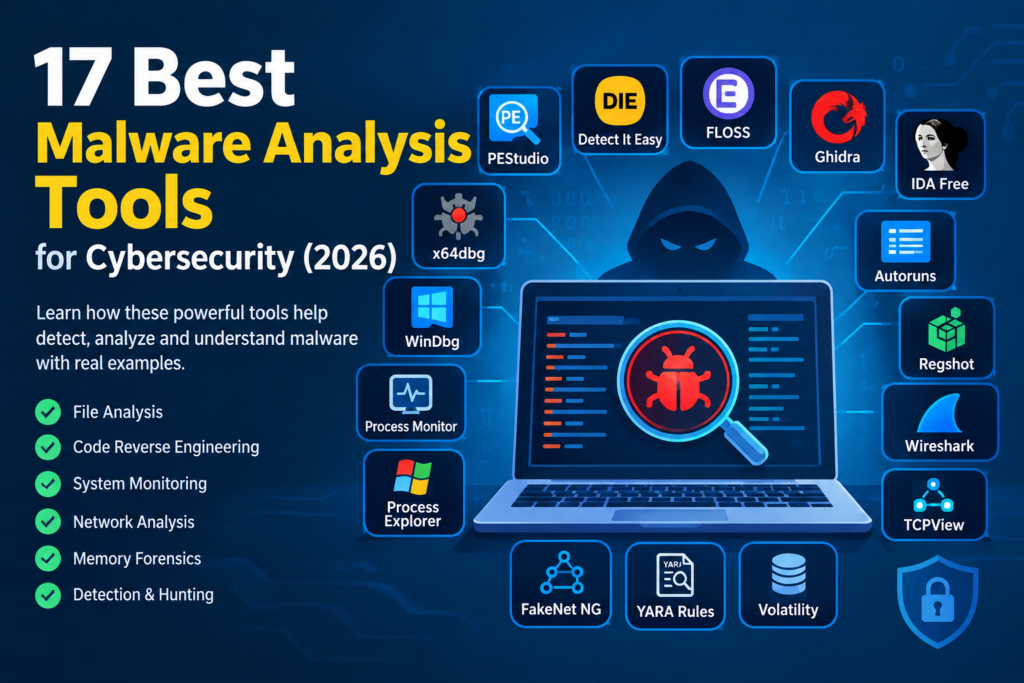
PEStudio and Detect It Easy help examine executable files. FLOSS and strings utilities reveal useful text. Ghidra, IDA Free, x64dbg, and WinDbg support reverse engineering and debugging.
Process Monitor, Process Explorer, Autoruns, and Regshot help analysts investigate system activity and configuration changes. Wireshark, TCPView, and FakeNet NG support network analysis, while YARA and Volatility help with malware detection and memory investigation.
Cybersecurity professionals often combine several tools to obtain a more complete understanding of a suspicious program. Students should begin with basic file analysis and system monitoring before moving on to reverse engineering and memory forensics.
All practical malware analysis should be performed in an isolated laboratory using authorized samples and appropriate safety precautions.