Authentication Complete Guide with Easy Example
What is Authentication
Authentication is one of the most important concepts in cybersecurity and information technology. It is the process of verifying the identity of a person, device, or system before allowing access to a resource.
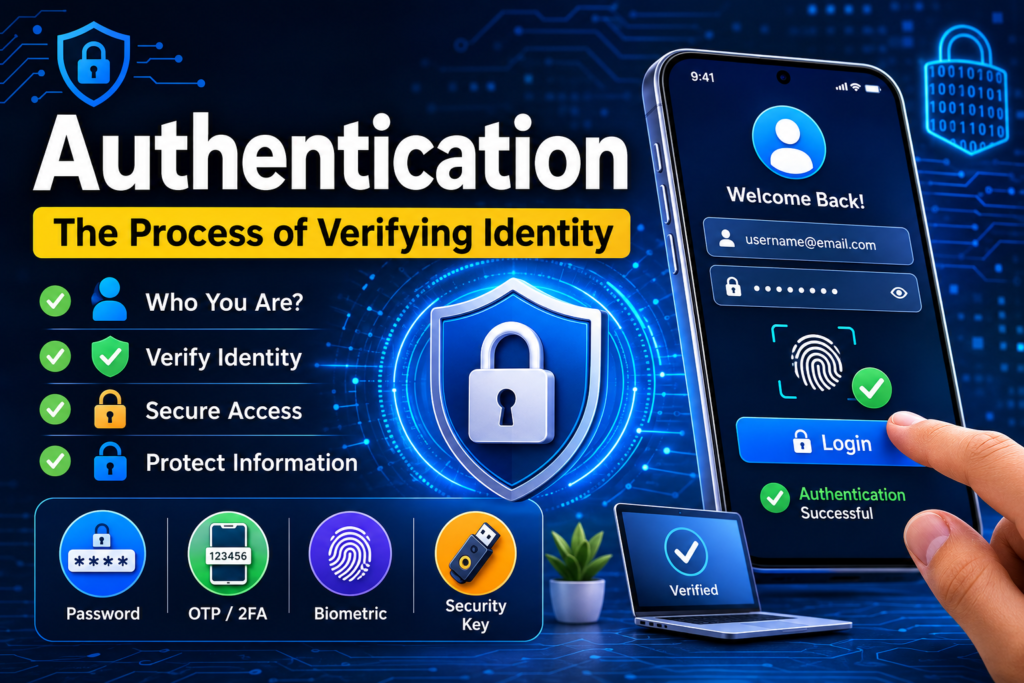
Table of Contents
Authentication answers the question: “Who are you?”
Whenever you log in to an email account, access online banking, unlock your smartphone, or sign in to a website, authentication is taking place.
Authentication helps organizations prevent unauthorized users from accessing confidential information, applications, networks, and systems.
What Is real Authentication meaning?
The real Authentication meaning is the process of verifying the identity of a user or system.
For example, when you log in to a website using:
- Username
- Password
the website checks whether the provided credentials belong to an existing account. If they are correct, the system authenticates you and allows you to continue.
Basic Authentication Flow
User
↓
Enters Credentials
↓
Authentication System
↓
Checks Identity
↓
Credentials Correct?
├── Yes → Access Granted
└── No → Access Denied
Authentication is different from authorization.
- Authentication: Who are you?
- Authorization: What are you allowed to do?
For example, a student may authenticate successfully into an LMS, but authorization determines whether that student can access grades, courses, or administrative settings.
Example: ATM Authentication
An ATM provides an excellent real-life example of authentication.
Suppose you have a bank account and want to withdraw money.
Step 1: Insert Your Bank Card
You insert your debit card into the ATM.
The card provides information that identifies your banking account.
Step 2: Enter Your PIN
The ATM asks for your Personal Identification Number (PIN).
You enter your four- or six-digit PIN.
Step 3: The Bank Verifies Your Identity
The ATM sends the authentication information to the bank’s system.
The bank checks whether the PIN matches the account associated with the card.
Step 4: Authentication Result
If the PIN is correct:
Card + Correct PIN
↓
Identity Verified
↓
Authentication Successful
↓
ATM Services Available
If the PIN is incorrect:
Card + Incorrect PIN
↓
Identity Verification Failed
↓
Access Denied
The ATM may also temporarily block the card after multiple failed authentication attempts.
What Happens After Authentication?
Once you are authenticated, the ATM still needs to determine what operations you are permitted to perform.
For example, you may be authorized to:
- Check your balance
- Withdraw money
- Deposit money
- Transfer funds
- Change your PIN
This demonstrates the difference between authentication and authorization.
Authentication Factors
Authentication can use different types of information to verify identity. These are commonly called authentication factors.
1. Something You Know
This is information that only the user should know.
Examples:
- Password
- PIN
- Security question
- Passphrase
For example:
Username: ali@example.com
Password: ********
The password is a knowledge factor.
2. Something You Have
This involves a physical device or object possessed by the user.
Examples:
- Smartphone
- Smart card
- Hardware security key
- Bank card
- Authentication token
For example, a website may send a one-time verification code to your smartphone.
3. Something You Are
This uses a biometric characteristic of the user.
Examples:
- Fingerprint
- Face
- Iris
- Voice
- Retina
For example, a smartphone may authenticate you using your fingerprint.
4. Somewhere You Are
Some systems consider the user’s geographic or network location as an additional security signal.
Examples:
- Login from an approved country
- Login from a corporate network
- Login from a trusted IP address
Location is generally used as an additional risk signal rather than a standalone authentication factor.
5. Something You Do
Some authentication systems can analyze behavioral characteristics.
Examples:
- Typing patterns
- Mouse movement
- Touchscreen behavior
- Signature dynamics
These characteristics can help systems detect unusual behavior.
Multi-Factor Authentication (MFA)
Multi-Factor Authentication (MFA) requires two or more authentication factors.
For example:
Password
+
Authenticator App Code
↓
Authentication Successful
Another example:
Password
+
Fingerprint
↓
Access Granted
MFA provides stronger protection than using a password alone because an attacker must compromise multiple factors.
Example
Imagine someone obtains your email password.
Without MFA:
Password Stolen
↓
Attacker Logs In
↓
Account Compromised
With MFA:
Password Stolen
↓
Attacker Attempts Login
↓
Second Factor Required
↓
Attacker Cannot Complete Verification
↓
Access Blocked
MFA is widely used for email accounts, cloud services, banking systems, corporate applications, and administrative systems.
What is Two Factor Authentication (2FA)?
Two-Factor Authentication (2FA) is a security method that requires two different types of verification before allowing you to log in to an account.
Instead of relying only on a password, 2FA adds an extra security layer. Even if someone steals your password, they may still be unable to access your account without the second factor.
How to set up two Factor Authentication app 2FA Works
Usually, authentication involves two factors:
- Something you know — your password or PIN.
- Something you have — your phone, authenticator app, security key, or another trusted device.
For example:
Username + Password → Verification Code → Account Access
Google Authentication
Google Authenticator is a mobile app used for Two-Factor Authentication (2FA). It generates a temporary verification code, usually changing every 30 seconds.
How It Works
- Enter your username and password.
- The website asks for a 2FA verification code.
- Open Google Authenticator on your phone.
- Enter the 6-digit code shown in the app.
- You can access your account.
Example
Email: example@gmail.com
Password: ********
Google Authenticator Code: 123456
Login Successful
Why Use Google Authenticator?
- Adds an extra layer of security
- Codes are generated on your device
- Can work without an internet connection
- Helps protect accounts if your password is stolen
You can use Google Authenticator for Google, Facebook, Instagram, WordPress, GitHub, and many other accounts.ChatGPT
Option 2
What is Google Authentication?
Google Authenticator is a mobile app that provides Two-Factor Authentication (2FA) for your accounts.
When you log in:
- Enter your username and password.
- Open Google Authenticator.
- Enter the temporary 6-digit verification code.
- Access your account.
The code usually changes every 30 seconds, adding an extra layer of security.
Example
Password → Google Authenticator Code → Account Access
Google Authenticator is commonly used to secure:
- Google accounts
- WordPress
- Hosting accounts
- Cryptocurrency exchanges
- Other websites supporting 2FA
Important: Save your backup/recovery codes when enabling 2FA. If you lose your phone, they can help you regain access.
Common Types of Authentication Methods
There are common types of authentication given blow:
Username and Password
The traditional authentication method is:
Username + Password
It is simple and widely supported, but passwords can be:
- Guessed
- Stolen
- Phished
- Reused
- Exposed in data breaches
Therefore, modern systems should use strong password policies and additional security controls.
One-Time Passwords (OTP)
An OTP is a temporary authentication code that can generally be used only once or for a limited period.
Example:
Your verification code is: 583214
The code may be delivered through an authenticator application, SMS, email, or another mechanism.
Authenticator apps and hardware-based methods are generally preferable to SMS when stronger security is required.
Biometric Authentication
Biometric authentication verifies a user’s physical characteristics.
Examples:
- Fingerprint scanning
- Facial recognition
- Iris recognition
For example:
User
↓
Fingerprint Scanner
↓
Biometric Verification
↓
Match Found
↓
Access Granted
Security Keys
Hardware security keys provide strong authentication using a physical device.
Examples include security keys that support modern standards such as FIDO2/WebAuthn.
The user typically connects or taps the security key during login.
This can provide strong resistance against phishing compared with traditional passwords.
Passwordless Authentication
Passwordless authentication allows users to authenticate without entering a traditional password.
Examples include:
- Passkeys
- Security keys
- Device-based authentication
- Biometrics used with passkeys
A modern passwordless flow might look like:
User enters email
↓
Passkey requested
↓
Device verifies user
↓
Cryptographic authentication
↓
Access Granted
Authentication in a Website
Consider an online learning management system.
A student enters:
Email: student@example.com
Password: ********
The application receives the login request and verifies the credentials.
A secure authentication process typically involves:
Student
↓
Login Form
↓
HTTPS Request
↓
Server
↓
Find User Account
↓
Verify Password Hash
↓
Create Authenticated Session
↓
Dashboard
Importantly, a secure application should not store passwords as plain text.
Instead, passwords should be stored using a modern password-hashing algorithm such as:
- Argon2id
- bcrypt
- scrypt
For example, in PHP:
$hash = password_hash($password, PASSWORD_DEFAULT);
During login:
if (password_verify($password, $hash)) {
echo “Authentication successful”;
} else {
echo “Invalid credentials”;
}
The application stores the password hash rather than the original password.
Authentication vs Authorization
These two concepts are often confused.
Authentication
Authentication verifies identity.
Who are you?
Example:
A student logs into an LMS using their email and password.
Authorization
Authorization determines permissions.
What are you allowed to access or perform?
Example:
A student can view their courses, while an administrator can create courses and manage users.
Comparison
| Authentication | Authorization |
| Verifies identity | Determines permissions |
| Happens during login or identity verification | Controls access after identity is established |
| Uses passwords, biometrics, tokens, etc. | Uses roles, permissions, policies, etc. |
| Answers “Who are you?” | Answers “What can you do?” |
Authentication vs Identification
Identification and authentication are also different.
Identification
The user claims an identity.
Example:
Username: ali
Authentication
The system verifies that claim.
Example:
Username: ali
Password: ********
The username identifies the account, while the password helps authenticate the user.
Common Authentication Attacks
Authentication systems can be targeted by attackers.
1. Brute-Force Attack
An attacker repeatedly tries different passwords.
Password 1 → Failed
Password 2 → Failed
Password 3 → Failed
…
Correct Password → Success
Protection includes:
- Rate limiting
- Account lockout policies
- MFA
- Strong passwords
- CAPTCHA where appropriate
2. Credential Stuffing
Attackers use username/password combinations stolen from another service.
This is especially dangerous when users reuse passwords.
Protection:
- Use unique passwords
- Enable MFA
- Use password managers
- Monitor suspicious login activity
3. Phishing
An attacker creates a fake login page designed to steal credentials.
For example:
Fake Website
↓
User Enters Password
↓
Attacker Captures Credentials
Security keys and passkeys can significantly reduce the risk from many phishing attacks.
4. Session Hijacking
After authentication, a web application often gives the browser a session identifier.
If an attacker obtains a valid session identifier, they may attempt to impersonate the authenticated user.
Security measures include:
- HTTPS
- Secure cookies
- HttpOnly cookies
- SameSite cookies
- Session expiration
- Session ID regeneration after login
Best Practices for Secure Authentication
Organizations should implement strong authentication controls.
For Users
- Use long, unique passwords.
- Never reuse important passwords.
- Enable MFA.
- Use a reputable password manager.
- Avoid entering credentials into suspicious websites.
- Keep devices and browsers updated.
- Review account login notifications.
For Developers
- Store passwords using secure password-hashing algorithms.
- Never store plaintext passwords.
- Use HTTPS for authentication traffic.
- Implement rate limiting.
- Use secure session management.
- Protect authentication endpoints against CSRF where applicable.
- Use secure, HttpOnly, and appropriately configured SameSite cookies.
- Implement MFA for sensitive accounts.
- Log authentication events securely.
- Avoid revealing whether a username or email exists through overly specific login errors.
A Complete with Easy Scenario
Imagine that you are using IT Code Hub LMS.
You visit:
You enter:
Email: student@example.com
Password: ********
The following process occurs:
Stage 1 — Identification
The email tells the system which account you are claiming.
Stage 2 — Credential Verification
The server retrieves the account’s stored password hash and verifies the submitted password.
Stage 3 — MFA
If MFA is enabled, the system requests another authentication factor.
Password
+
Authenticator Code
Stage 4 — Session Creation
After successful authentication, the server creates an authenticated session.
Stage 5 — Authorization
The system checks your role.
Role = Student
You can then access resources permitted to students.
For example:
Student
├── My Courses
├── Lessons
├── Assignments
├── Exams
├── Results
└── Certificates
An administrator would receive different permissions:
Administrator
├── Manage Students
├── Manage Teachers
├── Manage Courses
├── Manage Exams
├── Manage Results
└── System Settings
This demonstrates the complete relationship:
Identification
↓
Authentication
↓
Session Establishment
↓
Authorization
↓
Resource Access
Why Authentication Is Important
Authentication protects systems from unauthorized access.
Without authentication, anyone could potentially access:
- Personal information
- Financial data
- Business systems
- Educational records
- Private communications
- Administrative functions
Strong authentication is therefore a fundamental component of cybersecurity.
Conclusion
Authentication is the process of verifying the identity of a user, device, or system. It can use passwords, PINs, authentication apps, security keys, biometrics, passkeys, and other mechanisms.
The ATM example makes the concept easy to understand: the bank card identifies the account, while the PIN helps verify that the person using the card is authorized to authenticate as the account holder.
In modern cybersecurity, authentication should go beyond passwords whenever practical. Multi-factor authentication, strong password hashing, secure session management, HTTPS, and phishing-resistant authentication methods such as passkeys or security keys can significantly improve account security.
The key concept to remember is:
Authentication = “Who are you?”
Authorization = “What are you allowed to do?”