Complete Guide Nikto Tool, Download, Installation, and Web Server Scanning
Nikto is an open source web server scanner used by security professionals and penetration testers to identify potentially dangerous files, outdated software, insecure configurations, and known security issues on web servers.
In this guide, you will learn what Nikto is, how the Nikto tool works, how to perform Nikto download and installation, common commands, and a practical example.
Important: Only scan websites and servers that you own or have explicit permission to test. Unauthorized security scanning can violate laws, policies, or terms of service.
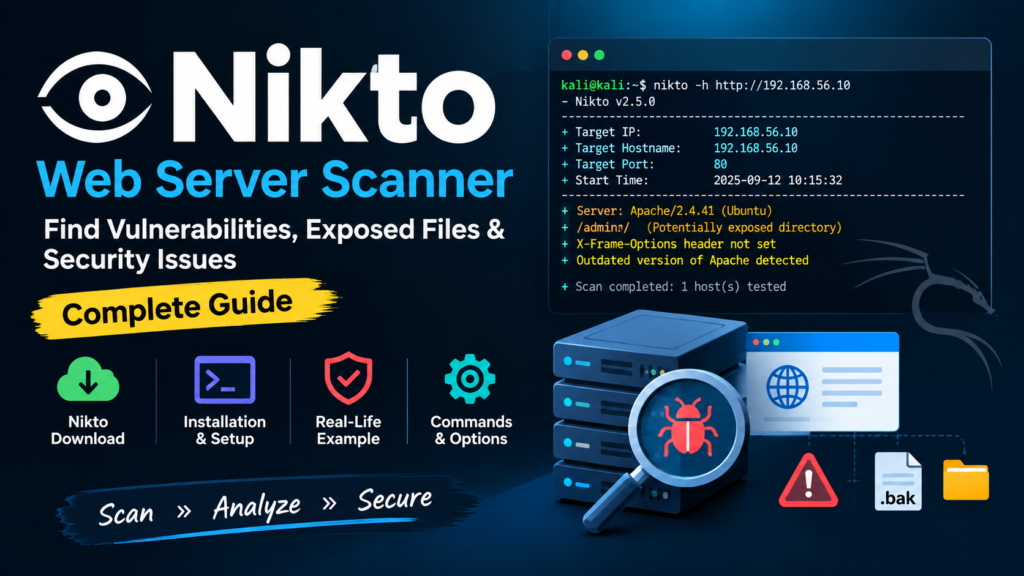
Table of Contents
What Is Nikto?
Nikto is a command line web server scanner designed to perform various checks against a web server.
It can help identify:
- Outdated web server software
- Potentially dangerous files
- Default or exposed files
- Misconfigured HTTP headers
- Common web server vulnerabilities
- Interesting directories and resources
- Older server components
- Known issues associated with server software
Nikto is particularly useful during the reconnaissance and vulnerability assessment stages of an authorized penetration test.
What Is the Nikto Tool?
The Nikto tool is primarily written in Perl and is available on several operating systems, including Linux distributions such as Kali Linux.
Unlike a browser based vulnerability scanner, Nikto is normally operated from the terminal. It sends HTTP requests to the target web server and analyzes the responses for indicators that may represent security weaknesses or configuration problems.
Nikto should not be considered a complete penetration testing solution. Its results are best treated as findings that require further manual verification.
How Does Nikto Work?
A simplified Nikto workflow looks like this:
Target → HTTP Requests → Server Responses → Nikto Checks → Findings
For example, suppose an authorized test server responds with:
Server: Apache/2.4.x
Nikto may identify the server software and compare it against its checks. It can also test for potentially exposed resources and configuration issues.
The important point is that a Nikto finding does not automatically mean the server is exploitable. Security professionals should validate important findings manually.
Nikto Download and Installation
If you are using Kali Linux, Nikto is commonly available through the distribution’s package repositories.
Update your package information:
sudo apt update
Install Nikto:
sudo apt install nikto
Verify the installation:
nikto -Version
You can also display the help menu:
nikto -h
Official Nikto Download / Source:
https://github.com/sullo/nikto
Nikto Download on Other Linux Systems
On Debian based Linux distributions, the package manager approach is generally the simplest method:
sudo apt update
sudo apt install nikto
For the latest project information and source code, use the official Nikto project repository rather than downloading random copies from third party websites.
Basic Nikto Command
The basic syntax is:
nikto -h http://TARGET
For example, on a lab machine:
nikto -h http://192.168.56.10
Here:
- nikto starts the scanner.
- -h specifies the target host.
- http://192.168.56.10 is the authorized lab server.
Scanning an HTTPS Website
If your authorized test server uses HTTPS, specify the HTTPS URL:
nikto -h https://192.168.56.10
For a domain you own:
nikto -h https://example.com
Do not use these commands against systems without permission.
Useful Nikto Options
Some commonly used options include:
| Option | Purpose |
| -h | Specify the target host |
| -port | Specify a port |
| -ssl | Force SSL/TLS testing |
| -output | Save results to a file |
| -Format | Select the output format |
| -v | Increase verbosity |
| -Tuning | Control categories of tests |
For example, to save scan results:
nikto -h http://192.168.56.10 -output nikto results.txt
This is useful when conducting a security assessment because you can review the findings later.
Example: Testing a Company Web Server
Imagine a small company has an internal training server at:
192.168.56.10
The security team owns this server and has authorized a vulnerability assessment.
Step 1: Confirm the Target
The tester confirms that:
192.168.56.10
is the organization’s authorized test server.
Step 2: Run Nikto
The tester executes:
nikto -h http://192.168.56.10
Nikto begins sending HTTP requests and analyzing the server’s responses.
Step 3: Review the Findings
Suppose the scan reports information such as:
Server: Apache
and identifies a potentially exposed directory or an HTTP security header issue.
The tester should not immediately assume that the server has been compromised.
Instead, the finding should be investigated manually.
For example, if Nikto identifies:
/security-test/
the security team can determine whether the directory is intentionally public, accidentally exposed, or contains sensitive material.
Step 4: Validate the Finding
The tester checks the resource using an authorized browser or HTTP client:
curl -I http://192.168.56.10/security-test/
The response can provide additional information about the resource and its HTTP headers.
Step 5: Document the Risk
If sensitive information is exposed, the security team records:
- Finding
- Affected URL
- Evidence
- Security impact
- Risk level
- Recommended remediation
For example:
Finding: Sensitive test directory exposed
Impact: Unauthorized users may discover internal testing resources
Recommendation: Remove unnecessary files and restrict access using appropriate authentication or access controls.
This is how Nikto can contribute to a professional vulnerability assessment without directly exploiting the target.
What Can Nikto Detect?
Nikto can identify many categories of potential security problems, including:
1. Outdated Server Software
An old web server version may have known security issues.
However, version detection alone does not prove that a specific vulnerability exists.
2. Dangerous or Exposed Files
Nikto can identify files and resources that may not be appropriate for public access.
Examples can include:
- Backup files
- Default files
- Test pages
- Configuration related resources
3. HTTP Security Issues
Nikto can report certain security related HTTP configuration problems, such as missing or weak security headers.
4. Default Content
Default web server pages and applications can reveal useful information about the underlying technology.
5. Web Server Misconfiguration
Misconfigured services can sometimes expose unnecessary information or functionality.
Nikto vs Nmap
Nikto and Nmap are both popular security tools, but they have different primary purposes.
| Feature | Nikto | Nmap |
| Main purpose | Web server assessment | Network/service discovery |
| Web server checks | Strong | Limited compared with Nikto |
| Port scanning | Not its main purpose | Excellent |
| Service detection | Some | Strong |
| Vulnerability scripts | Basic web focused checks | Extensive NSE ecosystem |
| Typical use | Web assessment | Network reconnaissance |
A penetration tester may use Nmap to identify available services and then use Nikto to investigate an authorized web service.
For example:
Nmap → Identify HTTP service → Nikto → Assess web server
Limitations of Nikto
Nikto is useful, but it has important limitations.
It Can Produce False Positives
A reported issue may not actually represent a serious vulnerability.
It Is Not a Full Web Application Scanner
Modern web applications can contain complex authentication, JavaScript, APIs, business logic, and client side functionality that require other testing methods.
Scans Can Be Noisy
Nikto generates many HTTP requests. Running it against production systems without planning can create logs, alerts, or unnecessary load.
Findings Require Validation
A scanner identifies potential problems; a security professional must determine whether those findings are actually exploitable or impactful.
Nikto Best Practices
For responsible security testing:
- Scan only authorized systems.
- Prefer a dedicated lab for learning.
- Start with low impact testing.
- Review findings manually.
- Keep evidence of important findings.
- Do not expose scan reports publicly.
- Keep Nikto and your operating system updated.
- Use multiple tools for comprehensive assessments.
- Avoid treating every scanner result as a confirmed vulnerability.
- Follow your organization’s testing rules and scope.
Nikto in Kali Linux
Kali Linux is a popular environment for cybersecurity training and penetration testing, and Nikto fits naturally into a web security assessment workflow.
A beginner might use this workflow in an isolated lab:
Kali Linux
↓
Identify authorized lab server
↓
Check HTTP service
↓
Run Nikto
↓
Review findings
↓
Manually validate
↓
Document and remediate
This approach teaches an important cybersecurity principle: automated scanning is only one part of security testing.
Conclusion
Nikto is a valuable tool for learning and performing authorized web server security assessments. It can help identify outdated components, exposed resources, potentially insecure configurations, and other issues that deserve further investigation.
If you are learning cybersecurity, start with an intentionally vulnerable lab or a server you control. Learn to interpret Nikto’s findings rather than simply running scans, because effective security testing requires discovery, validation, risk analysis, and remediation.
FAQ
Is Nikto free?
Yes. Nikto is an open source web server scanner that can be used for authorized security testing.
What is the Nikto tool used for?
The Nikto tool is used to assess web servers for potentially outdated software, exposed files, insecure configurations, and other known issues.
Where can I perform a Nikto download?
For Linux distributions such as Kali Linux, Nikto can generally be installed through the system package manager. For source code and project information, use the official Nikto project repository.
Is Nikto available in Kali Linux?
Yes, Nikto is available for Kali Linux and can be installed through the package manager.
Is Nikto a vulnerability scanner?
Nikto is a web server security scanner. It performs many checks that can reveal potential vulnerabilities and configuration weaknesses, but its results should be manually verified.
Can Nikto hack a website?
Nikto is primarily an assessment and scanning tool, not a general purpose exploitation framework. It should only be used against systems for which you have explicit authorization.
Is Nikto suitable for beginners?
Yes. Nikto is relatively easy to use from the command line and can help beginners understand web server security assessment in a controlled lab.