Domain, Hosting and SSL
Introduction
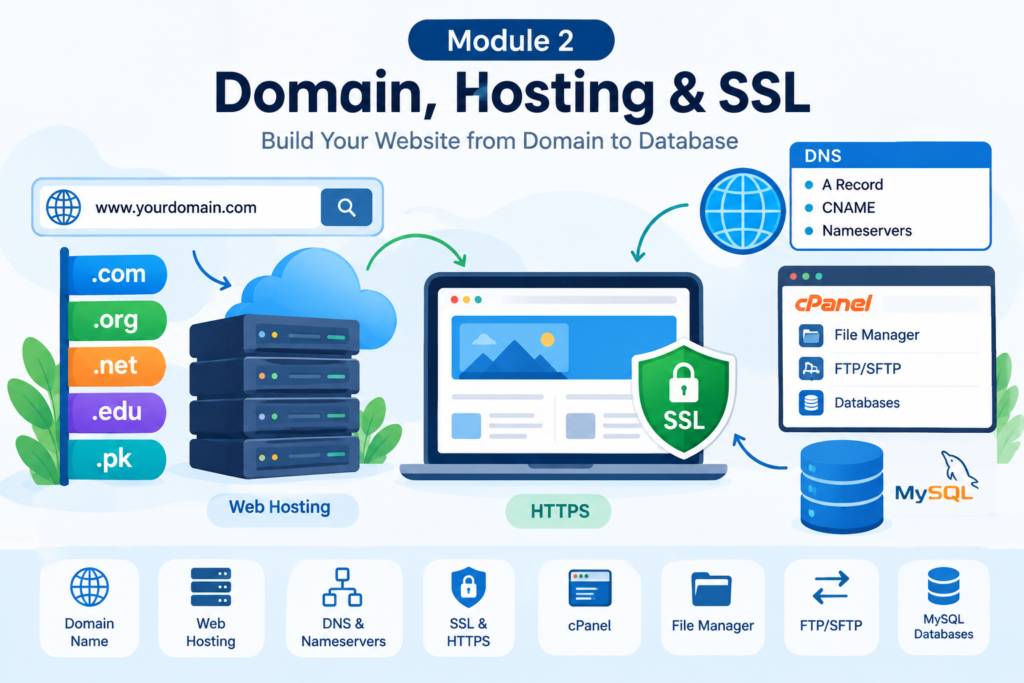
When you want to create a website, such as a blog, business website, online store, or educational platform, you need to understand three important things: a domain name, web hosting, and SSL.
These are the basic building blocks of a website. A domain name helps people find your website, web hosting stores your website files, and SSL helps protect the connection between your website and its visitors.
For example, if you want to create a website for your institute, you might choose a domain name such as itcodehub.com. You would then purchase web hosting, upload your website files, connect the domain to the hosting server, and install an SSL certificate.
In this Chapter, you will learn how domains, hosting, DNS, SSL, cPanel, FTP, and MySQL databases work. Each topic includes practical examples to help you understand how these technologies are used in real website development.
1. What Is a Domain Name?
A domain name is the address people type into their web browser to visit a website.
For example, when someone wants to visit Google, they enter google.com into their browser. Similarly, if someone wants to visit your website, they can enter your domain name instead of remembering a complicated server address.
Every website that is accessible through its own domain needs a way for the browser to locate the appropriate server. Domain names make this process easier for humans.
example
Imagine that your website is a physical shop.
Your shop has a name and an address so customers can find it. In the same way, a website has a domain name that visitors use to find it online.
For example:
- Shop name: IT Code Hub
- Online address: itcodehub.com
- Shop location: The server where your website is hosted
The domain name makes your website easier to find and remember.
Parts of a domain name
Consider this example:
www.seocodehub.com
It contains several parts.
- www is a common subdomain used for websites.
- seocodehub is the main name chosen for the domain.
- .com is the domain extension, also called a top-level domain.
Common domain extensions include:
- .com for general commercial and other websites
- .org for organizations
- .net for network-related and general websites
- .edu for eligible educational institutions in certain domain systems
- .pk for Pakistan-related domains
- .co.uk for the United Kingdom
How to choose a good domain name
A good domain name should be easy to remember, simple to spell, rele
Where can you register a domain?
You can register a domain through a domain registrar. Examples include:
- Namecheap
- GoDaddy
- Cloudflare Registrar
- PDR
Official websites:
Domain registration usually requires a recurring payment. The price depends on the extension, registrar, and renewal terms.
2. What Is Web Hosting?
Web hosting is a service that stores your website files and makes them accessible over the internet.
A website may contain HTML files, CSS stylesheets, JavaScript, images, videos, PHP scripts, and database information. These resources need to be stored on a server that can respond when visitors request your website.
A hosting provider supplies server resources and the infrastructure needed to run your website.
example
Imagine you want to open a clothing shop.
You need a building where you can keep your products and serve your customers. Your domain name is like the shop’s address, while web hosting is like the building itself.
Without hosting, you may own a domain name, but there would be no website files available to display.
How web hosting works
Suppose a visitor enters seocodehub.com into a browser.
The process generally works like this:
- The browser looks up the domain through DNS.
- DNS provides information that helps the browser locate the hosting server.
- The browser sends a request to the server.
- The server processes the request and returns the required website resources.
- The browser displays the website to the visitor.
If your website uses WordPress, the server may also run PHP code and retrieve information from a MySQL or compatible database.
What does hosting store?
Depending on your website, hosting may contain:
- Website files and images
- WordPress files and plugins
- Themes and custom code
- Database information
- Email-related settings
- Backups and logs
When choosing hosting, consider storage, bandwidth, performance, security, backup options, technical support, and renewal prices.
3. Types of Web Hosting
Different hosting types provide different levels of resources, control, and responsibility. The right choice depends on your website’s traffic, budget, and technical requirements.
Shared Hosting
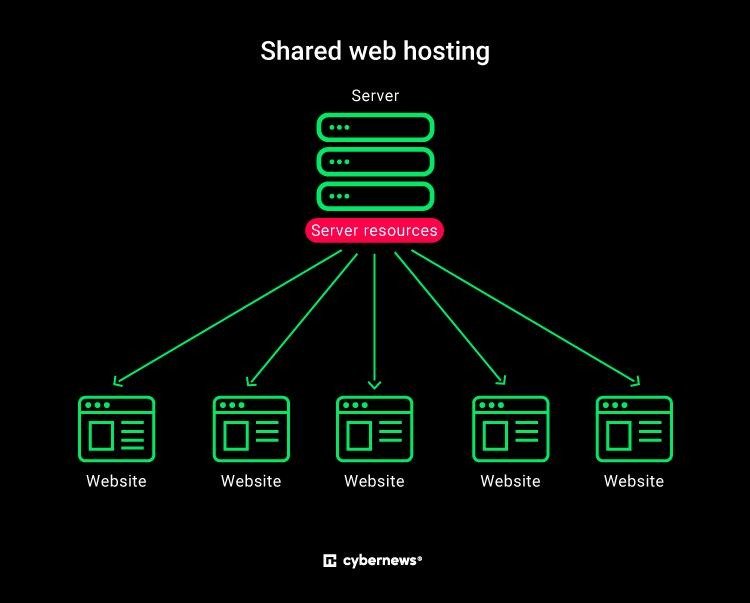
Shared hosting places multiple websites on the same server and allows them to share server resources.
Example: You rent a room in a shared house. Other people use the same building and facilities.
Suitable for: Beginners, personal blogs, small business websites, and new WordPress websites.
Limitation: Heavy usage by other websites can affect performance, depending on the provider’s resource limits.
VPS Hosting
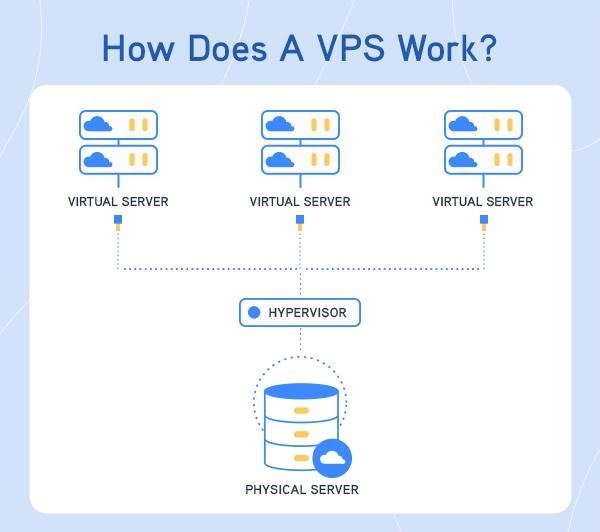
A Virtual Private Server uses virtualization to provide a separate virtual server with allocated resources on a physical machine.
Example: You rent a private apartment in a building. You share the building, but your living space is separate.
Suitable for: Growing websites, developers, and applications that need more control.
Limitation: Managed VPS services cost more, while unmanaged VPS hosting often requires server administration skills.

Cloud Hosting
Cloud hosting uses cloud infrastructure to provide computing resources. Depending on the service, resources can be distributed across multiple servers and scaled as needed.
Example: Instead of depending on one water tank, a building can receive water through a larger connected supply system.
Suitable for: Websites with changing traffic, growing applications, and businesses that need flexible resources.
Limitation: Costs and configuration can become complicated if resource usage is not monitored.

Dedicated Hosting
Dedicated hosting provides an entire physical server for one customer.
Example: You own or rent an entire building instead of sharing it with other businesses.
Suitable for: High-traffic websites, demanding applications, and organizations that need extensive server control.
Limitation: It is generally more expensive and may require advanced server management.
Hosting comparison
Feature
- Shared
- VPS
- Cloud
- Dedicated
Typical cost
- Low
- Medium
- Varies
- High
Server control
- Limited
- Greater
- Depends on service
- Extensive
Scalability
- Limited
- Moderate
- Often high
- Depends on setup
Management difficulty
- Low
- Medium to high
- Varies
- High
Common use
- Small websites
- Growing projects
- Scalable applications
- Resource-intensive systems
These are general comparisons. Actual performance, security, and scalability depend on the hosting provider and configuration.
4. Choosing WordPress Hosting
WordPress is a content management system used to create blogs, business websites, portfolios, educational platforms, and online stores.
WordPress requires a suitable web server environment, a supported PHP version, and a MySQL-compatible database. Many hosting providers offer plans designed specifically for WordPress.
What should you check before purchasing?
1. WordPress compatibility
Make sure the hosting plan supports WordPress and meets its current technical requirements.
2. SSL support
Look for free SSL certificates or a straightforward way to install and renew one.
3. Performance
Check the available resources, server response performance, caching options, and data-center locations.
4. Backups
Choose a plan with reliable backups and a clear restoration process.
5. Customer support
Support can be especially useful when you encounter installation errors, database problems, or website downtime.
6. Renewal prices
Do not compare only introductory prices. Check renewal costs, taxes, email charges, backup fees, and other additional expenses.
7. Staging environment
A staging website lets you test updates and design changes before applying them to your live website.
example
Suppose you want to launch an educational blog that publishes articles about SEO, WordPress, and web development.
You expect a few hundred visitors per day at the beginning. A suitable shared WordPress hosting plan may be sufficient.
If your website later receives substantially more traffic or runs a resource-intensive learning management system, you can evaluate a higher-resource plan or move to VPS or cloud hosting.
You do not need to purchase the most expensive hosting plan when starting out. Select a plan that meets your current requirements and allows a practical upgrade path.
Official WordPress resources:
5. DNS Basics
DNS stands for Domain Name System. It translates domain names into information that computers use to locate internet services.
People prefer memorable names such as seocodehub.com, while network communication relies on IP addresses and other technical information.
DNS helps connect the domain name to the correct destination.
example
Imagine you have a contact list on your mobile phone.
You save a person’s name, such as Ahmed, alongside their phone number. When you want to call Ahmed, you select the name instead of remembering the number.
DNS works in a similar way. It helps a computer find the technical information associated with a domain name.
How DNS works
When a visitor opens your website:
- The browser needs to locate the website’s server.
- It checks available DNS information, potentially using cached results.
- A DNS resolver obtains the required record if it is not already cached.
- The browser uses the returned information to connect to the appropriate service.
DNS records can also direct email traffic, identify alternative hostnames, and provide verification information for different services.
Common DNS record types
Record
Purpose
Example use
A
- Maps a hostname to an IPv4 address
- Points a domain to a web server
AAAA
- Maps a hostname to an IPv6 address
- Connects through IPv6
CNAME
- Points one hostname to another hostname
- Makes www an alias of another hostname
MX
- Identifies mail servers
- Directs incoming email
TXT
- Stores text-based information
- Domain verification and email security
NS
- Identifies authoritative nameservers
- Specifies which DNS servers manage a domain
For example, a DNS A record might point example.com to 192.0.2.10. This is an illustrative documentation address, not a real hosting server.
DNS changes do not always appear immediately because resolvers may cache older records until their time-to-live expires.
6. What Are Nameservers?
Nameservers are DNS servers that provide information about a domain. When you delegate a domain to a hosting provider’s nameservers, those servers become responsible for supplying its authoritative DNS records.
When you purchase hosting, the provider may give you two nameservers, such as:
- ns1.examplehost.com
- ns2.examplehost.com
These are illustrative names. Use the actual nameservers supplied by your provider.
example
Imagine that a domain name is like a business name, and the nameserver is like the office responsible for maintaining the business’s contact details.
When someone needs to find the business, they consult the appropriate information service.
Similarly, the domain’s nameserver delegation tells DNS resolvers where to obtain the authoritative records.
How to change nameservers
The exact process depends on your registrar, but it commonly involves the following steps:
- Log in to your domain registrar account.
- Open the domain management section.
- Select the domain you want to connect.
- Find the nameserver settings.
- Choose the custom nameserver option if necessary.
- Enter the nameservers supplied by your hosting or DNS provider.
- Save the changes.
Wait for the changes to become visible through DNS. The time required depends on caching and the domain’s configuration.
Important difference
Changing nameservers and changing an A record are not the same thing.
When you change nameservers, you change which DNS service is authoritative for the domain. When you change an A record, you change the IPv4 destination for a hostname within the relevant DNS zone.
If you change nameservers, make sure you recreate or preserve any required records, including email records. Otherwise, your website might work while your email stops working.
7. A Records and CNAME Records
A records and CNAME records are two common DNS record types used when connecting domains to online services.
A record
An A record maps a hostname to an IPv4 address.
For example:
Type
Host
Value
A
@
192.0.2.10
In many DNS management interfaces, @ represents the root domain, such as example.com.
The IP address above is for illustration only. You should use the IPv4 address supplied by your hosting provider.
CNAME record
A CNAME record makes one hostname an alias of another hostname.
For example:
Type
Host
Value
CNAME
www
example.com
This example makes www.example.com an alias of example.com.
Some providers recommend pointing www to a different hostname, such as a provider-managed target. Always follow your provider’s instructions.
A CNAME record generally cannot coexist with other ordinary records at the same hostname. The root domain also has special DNS constraints, so some providers offer flattening or similar features.
example
Think of an A record as storing a person’s direct street address.
A CNAME record is more like saying, “For the address of this branch, refer to the main office’s address.”
Both can help visitors reach your website, but they work differently.
When should you use each?
Use an A record when your hosting provider gives you an IPv4 address for the hostname.
Use a CNAME record when your provider asks you to point a hostname to another hostname.
Do not copy random DNS values from tutorials. Incorrect records may cause your website or email to stop working.
8. Installing SSL
SSL stands for Secure Sockets Layer. Although the term SSL is still widely used, modern website connections use TLS, which stands for Transport Layer Security.
An SSL/TLS certificate helps a browser establish an encrypted HTTPS connection with your website and verify the server’s identity.
Why do websites need SSL?
SSL/TLS helps protect information exchanged between visitors and websites against interception and unauthorized modification during transmission.
It is especially important for websites that handle login details, contact forms, customer information, or online payments.
However, an HTTPS connection does not automatically mean that a website is trustworthy or free from malware.
example
Imagine sending a private letter.
If you send it on an open postcard, other people who handle it may be able to read its contents. If you place it in a properly sealed and protected envelope, its contents are better protected during delivery.
HTTPS provides encryption for data travelling between the browser and the website server.
How to install SSL on cPanel hosting
Many hosting providers offer free certificates through services such as Let’s Encrypt or other certificate authorities.
The process varies by provider, but a common procedure is:
- Log in to your hosting account.
- Open cPanel.
- Find the SSL/TLS or SSL management section.
- Look for an option such as SSL Status or AutoSSL.
- Select the domain you want to secure.
- Run the certificate installation process if required.
- Wait for the certificate to be issued and installed.
- Open your website using HTTPS and check that the certificate is valid.
Some hosting providers install certificates automatically. In that case, you may not need to perform a manual installation.
What if SSL does not work?
Check the following:
- Your domain points to the correct hosting server.
- The domain resolves correctly through DNS.
- The certificate includes the hostname you are visiting.
- The certificate is valid and has not expired.
- The server is configured to use the certificate.
- Any required domain verification has completed.
If you use a CDN or reverse proxy, check its SSL configuration as well as the connection between the proxy and your origin server.
9. HTTP vs HTTPS
HTTP stands for Hypertext Transfer Protocol. It is used to transfer website resources between browsers and servers.
HTTPS is HTTP carried over a secure TLS connection.
The main difference is that HTTPS provides encryption and helps authenticate the server through its certificate.
Feature
HTTP
HTTPS
Encryption
No transport encryption by HTTP itself
Uses TLS encryption
Server authentication
No TLS certificate authentication
Certificate-based authentication
URL prefix
http://
https://
Protection for data in transit
Limited
Helps protect confidentiality and integrity
Recommended for modern websites
No
Yes
Example
An HTTP website might use:
http://example.com
The HTTPS version uses:
https://example.com
These are example addresses.
For a real website, HTTPS should be configured correctly, and visitors should be redirected from HTTP to HTTPS when appropriate.
What is mixed content?
Mixed content occurs when an HTTPS page loads some resources, such as images or scripts, over insecure HTTP.
For example, your main page may use HTTPS, but an image embedded in the page may still use an HTTP address.
This can trigger browser warnings or cause certain resources to be blocked.
To fix mixed content:
- Check the URLs of images, scripts, stylesheets, and other resources.
- Replace outdated HTTP URLs with HTTPS URLs where supported.
- Update WordPress settings or database references if necessary.
- Clear relevant caches.
- Test the website again.
HTTPS is an important part of website security, but it should be combined with updates, backups, strong passwords, and other security measures.
10. Connecting a Domain with Hosting
After purchasing a domain and a hosting plan, you need to connect them so visitors can access your website.
There are two common approaches: changing the domain’s nameservers or updating its DNS records.
Method 1: Change nameservers
This approach is common when your hosting provider manages your DNS.
- Purchase your domain.
- Purchase a hosting plan.
- Find the nameservers in your hosting account.
- Log in to your domain registrar.
- Open the nameserver settings.
- Enter the nameservers supplied by your host.
- Save the changes.
- Wait for DNS updates to become visible.
- Confirm that your domain points to the correct website.
Method 2: Update DNS records
If you want to keep DNS management with your current provider, you may be able to update the A record and any required CNAME records instead.
For example, your hosting provider may tell you to point the root domain to a specific IPv4 address and configure www as an alias.
Follow the exact values and instructions supplied by the hosting provider.
example
Suppose you register itcodehub.com through one company and purchase hosting from another.
Your domain registrar manages your registration, while your hosting provider stores your website files.
You connect the two by directing the domain’s DNS to the appropriate hosting service.
Once DNS is working and your website is configured, visitors can use the domain to reach your website.
Common connection problems
If your website does not open after connecting the domain, check:
- Whether the domain registration is active.
- Whether the nameservers are correct.
- Whether the A and CNAME records are correct.
- Whether the domain has been added to the hosting account.
- Whether the website files are in the correct document root.
- Whether SSL has been issued for the domain.
- Whether the DNS changes are still being cached.
Do not repeatedly change DNS records without checking the configuration. Unnecessary changes can make troubleshooting more difficult.
11. cPanel Basics
cPanel is a web-based control panel used by many hosting providers to manage websites and hosting services.
Instead of performing every task through command-line tools, you can use a graphical interface to manage files, databases, domains, email accounts, backups, and SSL settings.
What can you do with cPanel?
Common cPanel features include:
- File Manager for uploading and managing website files.
- MySQL database tools for creating databases and users.
- phpMyAdmin for working with supported databases.
- SSL/TLS tools for certificate management.
- Email Accounts for managing hosting email.
- Domains for managing domain-related settings.
- Backup tools for creating or restoring backups.
- FTP Accounts for managing file-transfer access.
The features available depend on your hosting provider and plan.
How to log in to cPanel
Your hosting provider will usually provide a cPanel login link and credentials.
A typical process is:
- Log in to your hosting account.
- Open the hosting management dashboard.
- Select the cPanel option.
- Enter your credentials if requested.
- Explore the available tools.
Some providers use a custom control panel instead of cPanel, so the interface may look different.
example
Imagine that you manage a physical office.
You have separate rooms for accounts, storage, communication, and administration. You visit the relevant room depending on the task you want to perform.
cPanel works like a central office where you access different website management tools.
12. Using File Manager
File Manager is a tool in cPanel that lets you view, upload, download, edit, rename, move, and delete website files through your browser.
You can use it to manage HTML, CSS, JavaScript, PHP, images, and other files.
Understanding the public_html directory
On many cPanel accounts, public_html is the document root for the main website.
Files stored in the correct document root may be served to visitors through your domain, depending on the hosting configuration.
For example:
public_html/
index.html
style.css
script.js
images/
logo.png
In this example:
- index.html contains the page structure.
- style.css controls the page’s appearance.
- script.js provides browser-side functionality.
- images/logo.png contains a logo image.
How to upload a website
- Log in to cPanel.
- Open File Manager.
- Navigate to your website’s document root.
- Upload your website files or a ZIP archive.
- Extract the archive if needed.
- Make sure the main page is in the correct directory.
- Visit your domain to test the website.
If you upload the files into an unnecessary nested folder, the domain may show a directory listing, a default page, or an error instead of your website.
Important safety advice
Before deleting or replacing website files, make a backup.
Be especially careful with configuration files that contain database credentials. Do not share them publicly or place them in a publicly accessible location unless the application is designed to protect them.
13. FTP and SFTP Basics
FTP stands for File Transfer Protocol. It allows a client application to transfer files between a computer and a server.
SFTP stands for SSH File Transfer Protocol. It transfers files over an SSH connection and is different from ordinary FTP.
What is FTP used for?
You can use a file-transfer client to:
- Upload website files.
- Download files for local editing.
- Transfer images and documents.
- Maintain a website with many files.
- Move files between your computer and hosting server.
FTP vs SFTP
Feature
- FTP
- SFTP
Purpose
- File transfer
- File transfer
Connection security
- Standard FTP does not encrypt credentials or data
- Encrypts the connection through SSH
Common port
- 21
- 22
Authentication
- Depends on configuration
- Commonly password or SSH key
Recommended for sensitive transfers
- Not without additional protection
- Generally preferred when supported
- FTPS is another protocol that adds TLS security to FTP. It is different from SFTP.
Using an FTP client
FileZilla is a commonly used file-transfer client.
Official website: FileZilla
A typical workflow is:
- Install an appropriate file-transfer client.
- Obtain the connection details from your hosting provider.
- Enter the server address, username, password or key, and connection settings.
- Connect to the server.
- Open the correct website directory.
- Upload or download the required files.
Use SFTP when your hosting provider supports it and gives you the correct connection details. Never share your login credentials with other people.
example
Suppose you build a PHP website on your local computer and want to publish it online.
You can use SFTP to transfer the PHP files from your development computer to your hosting account. You must also configure the production database and application settings correctly.
Simply uploading the files will not be enough if the website depends on a database that has not been configured.
14. MySQL Databases
MySQL is a relational database management system. It stores structured information in tables so applications can retrieve, add, update, and delete data.
Many dynamic websites use MySQL or a compatible database system. WordPress, for example, uses a database to store posts, pages, settings, users, and other information.
example
Imagine that you manage a college.
You need to store student names, registration numbers, courses, marks, and attendance records.
Instead of keeping all the information in separate paper files, you organize it into related tables in a database.
A website can use a database in a similar way.
Example of a student database
Imagine a database table named students.
| student_id | name | course |
| 1 | Ahmed | Web Development |
| 2 | Ayesha | SEO |
| 3 | Ali | Python |
Each row represents a student, and each column stores a particular type of information.
A student management system can use this information to display student profiles, manage enrollments, and generate reports.
What is a database in WordPress?
WordPress stores much of its content and configuration in a database.
For example, when you publish a blog article, WordPress saves information about the post in its database. When a visitor requests the article, WordPress retrieves the relevant information and generates the page.
Images and other uploaded media are generally stored as files, while their associated information and references are stored in the database.
How to create a MySQL database in cPanel
The exact interface varies by provider, but the general steps are:
- Log in to cPanel.
- Open MySQL Database Wizard or the database management section.
- Create a new database.
- Create a database user.
- Set a strong password for the user.
- Assign the user to the database.
- Grant only the privileges the application needs.
- Save the database name, username, password, and database host.
Some hosting providers add an account-specific prefix to database and username names. Use the full names shown in your control panel.
What is phpMyAdmin?
phpMyAdmin is a web-based tool for managing supported MySQL and MariaDB databases.
It allows you to view tables, run SQL queries, import database files, export backups, and inspect stored data.
For example, if you want to move a WordPress website to another hosting provider, you may export the database from the old hosting account and import it into the new one.
You must also move the website files and update the relevant configuration settings.
Basic SQL example
SQL stands for Structured Query Language. It is used to work with relational databases.
The following query retrieves all records from a table named students.
SQL
SELECT * FROM students;
To retrieve only students enrolled in Web Development, you could use:
SQL
SELECT *
FROM students
WHERE course = ‘Web Development’;
These examples assume that a table named students exists and has a course column.
Important database security practices
- Use strong database passwords.
- Give database users only the permissions they need.
- Never publish database credentials in public code repositories.
- Back up databases regularly.
- Restrict database access when possible.
- Use parameterized queries in application code to help prevent SQL injection.
- Test database restoration procedures before relying on backups.
15. Practical Project: Launch a WordPress Website
Now that you understand domains, hosting, DNS, SSL, cPanel, and databases, it is time to connect these concepts in a practical project.
Imagine you want to create a website for an educational institute called IT Code Hub.
Project requirements
Use this checklist as you complete the project.
Project progress
0 of 10
- Choose and register an available domain name.
- Purchase a suitable WordPress hosting plan.
- Connect the domain using nameservers or DNS records.
- Confirm that the domain points to the correct server.
- Install WordPress through the hosting panel or manually.
- Enable SSL and verify that HTTPS works.
- Check the website files in File Manager.
- Confirm that WordPress can connect to its database.
- Open the website on desktop and mobile devices.
- Create a backup of the working website.
Expected result
At the end of this project, you should have a working WordPress website that visitors can access through your domain using HTTPS.
You should also understand where your website files are stored, how the domain connects to the server, and how WordPress uses a database.
16. Common Problems and Their Solutions
- Problem
- Possible cause
- What to check
- Domain does not open
- Incorrect DNS or inactive registration
- Nameservers, DNS records, registration status
- Website shows the wrong page
- Incorrect document root or cached content
- Hosting domain settings and website files
- SSL warning appears
- Missing, invalid, or mismatched certificate
- Certificate status and hostname
- WordPress shows a database error
- Incorrect database settings or unavailable database
- Database name, username, password, and host
- Website files are missing
- Incorrect upload location
- Document root and File Manager
- Website email stops working
- Required mail DNS records are missing
- MX, SPF, DKIM, and other provider-required records
- Website loads slowly
- Resource limits, large images, or inefficient code
- Hosting resources, caching, and website performance
When troubleshooting, change one setting at a time and test the result. This makes it easier to identify the actual cause of the problem.
17. Chapter Summary
In this Chapter, you learned the essential concepts required to publish and manage a website.
A domain name is the address people use to find your website. Web hosting stores your website files and provides the server resources needed to deliver them. Shared, VPS, cloud, and dedicated hosting offer different resource and management options.
DNS connects domain names with the technical information needed to locate online services. Nameservers identify the authoritative DNS service, while A and CNAME records help direct hostnames to their destinations.
SSL/TLS certificates enable secure HTTPS connections. You also learned how to connect a domain with hosting, manage website files through cPanel, transfer files using FTP or SFTP, and store website information in MySQL databases.
These skills provide the foundation for publishing a WordPress website and managing its basic hosting environment.
18. Practice Questions
Try answering these questions without looking at the explanations above.
- What is a domain name, and how is it different from web hosting?
- What is the difference between shared hosting and VPS hosting?
- Why might a growing website move to cloud hosting?
- What is DNS, and why is it important?
- What is the difference between nameservers and A records?
- When should you use a CNAME record?
- Why should a website use HTTPS?
- What is the purpose of cPanel?
- What is the difference between FTP and SFTP?
- Why does WordPress need a database?
- What is phpMyAdmin used for?
- What steps would you take if your domain opens but your SSL certificate is not working?
19. Practical Assignment
Create a website deployment plan for a fictional educational institute.
Your assignment should include:
- A proposed domain name and a suitable extension.
- Your hosting type and the reasons for choosing it.
- The DNS records required to connect the domain.
- A description of how you would install SSL.
- The steps for uploading website files.
- The database name and user you would create.
- A backup and security plan.
- A troubleshooting plan for three possible website problems.
You do not need to purchase a domain or hosting plan to complete this assignment. You can prepare the plan using fictional details and the concepts covered in this Chapter.
Next Chapter: 3 WordPress Installation
WordPress Installation and Setup, where you can learn how to install WordPress, configure its basic settings, choose a theme, install plugins, and prepare your website for publishing content.