Windows Security Features Complete Guide with Easy Examples
Windows Security is a built in collection of tools and technologies designed to protect Windows computers from malware, unauthorized access, data theft, malicious applications, and other cybersecurity threats. Modern versions of Windows, especially Windows 10 and Windows 11, include multiple layers of security that work together rather than relying on a single security feature.
Understanding these features is important for students, IT professionals, system administrators, and everyday computer users.
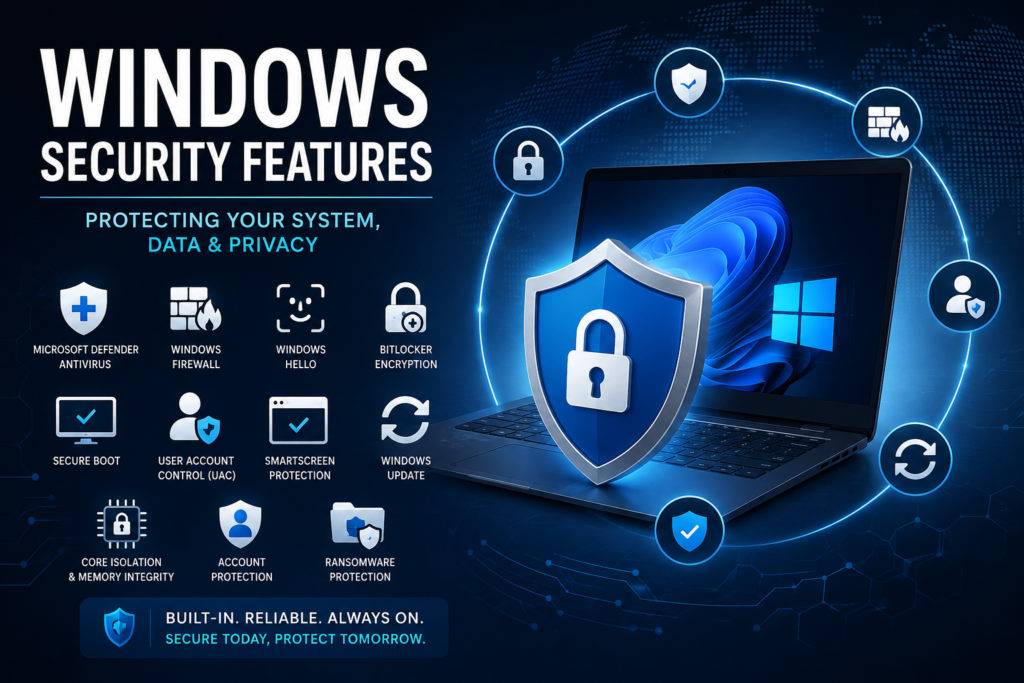
Table of Contents
What Is Windows Security Features?
Windows Security is Microsoft’s integrated security platform for protecting a Windows device. It combines several technologies, including:
- Microsoft Defender Antivirus
- Windows Firewall
- Windows Hello
- BitLocker Drive Encryption
- Secure Boot
- User Account Control (UAC)
- SmartScreen
- Windows Update
- Core Isolation and Memory Integrity
- Device Security
- Account Protection
These features provide protection at different stages, from starting the computer to opening files, browsing websites, installing applications, and accessing personal data.
1. Microsoft Defender Antivirus
Microsoft Defender Antivirus is Windows’ built in antivirus and antimalware solution. It continuously monitors the computer for malicious software such as:
- Viruses
- Trojans
- Spyware
- Ransomware
- Worms
- Potentially unwanted applications
Defender can scan files when they are downloaded, opened, or executed.
Example
Imagine that you download a program called:
Free_Premium_Photoshop.exe
from an unknown website.
When you try to open the file, Microsoft Defender scans it. If the file matches known malware behavior or a malicious signature, Defender can block or quarantine it before it damages your computer.
Lesson: Avoid disabling antivirus protection simply because it interferes with an unknown application.
2. Windows Firewall
Windows Defender Firewall controls network traffic entering and leaving your computer.
It helps prevent unauthorized applications or attackers from establishing unwanted network connections.
A firewall can help protect your computer when you connect to:
- Home networks
- Office networks
- Public WiFi
- Ethernet networks
Example
Suppose you connect your laptop to WiFi at a coffee shop. Another device on the same network attempts to connect to a network service on your laptop.
If the service is not supposed to be publicly accessible and the firewall blocks the connection, the other device cannot directly communicate with that service.
Lesson: Keep the Windows Firewall enabled unless there is a specific, controlled reason to change its configuration.
3. Windows Hello
Windows Hello provides passwordless or reduced password authentication using methods such as:
- Fingerprint
- Facial recognition
- PIN
The Windows Hello PIN is associated with the specific device rather than being simply your Microsoft account password.
Example
Suppose you leave your laptop in an office while you go to lunch.
Instead of relying on a password that someone might know, Windows Hello can require your fingerprint or configured PIN before allowing access.
Lesson: Use Windows Hello when your device supports it, especially on laptops containing sensitive information.
4. BitLocker Drive Encryption
BitLocker encrypts data stored on supported Windows drives.
Encryption protects information if someone physically obtains your storage device.
Without the appropriate authentication or recovery information, encrypted data is significantly harder to access.
Example
Imagine that an employee’s laptop is stolen from a vehicle.
The laptop contains:
- Customer documents
- Business reports
- Emails
- Internal files
If the drive is protected with BitLocker, an attacker who removes the SSD and connects it to another computer cannot simply browse the files as if the drive were unencrypted.
Lesson: Encryption is particularly important for laptops and portable computers because they can be physically lost or stolen.
Important: BitLocker recovery information should be stored securely. Losing the recovery key can create serious data access problems.
5. Secure Boot
Secure Boot is a security feature supported by modern systems using UEFI firmware.
It helps ensure that trusted boot software is loaded during the startup process.
This protects against certain types of malware that attempt to run before Windows itself starts.
Example
Consider a computer infected with a sophisticated boot level threat designed to load before Windows.
Secure Boot can help prevent unauthorized boot components from being loaded by checking whether the boot software is appropriately trusted.
Lesson: Secure Boot provides an additional layer of protection before the operating system starts.
6. User Account Control (UAC)
User Account Control, commonly known as UAC, helps prevent unauthorized changes to Windows.
When an application attempts to perform an operation requiring elevated privileges, Windows may display a confirmation prompt.
For example:
“Do you want to allow this app to make changes to your device?”
Example
You accidentally download a suspicious application and double click it.
The application attempts to make system level changes. UAC displays a prompt before allowing the elevated operation.
If you did not intentionally start the application, you can cancel the request.
Lesson: Do not automatically click “Yes” on every UAC prompt. Verify which application is requesting administrative access.
7. Microsoft Defender SmartScreen
Microsoft Defender SmartScreen helps protect users from potentially dangerous websites, downloads, and applications.
It can warn users about:
- Phishing websites
- Malicious downloads
- Suspicious applications
- Known unsafe content
Example
You receive an email containing a link that appears to lead to your bank.
The link actually leads to a fake login page designed to steal your credentials.
If the website has been identified as dangerous, SmartScreen may display a warning before you continue.
Lesson: Security warnings should not be ignored simply because a website looks professional.
8. Windows Update
Security is not only about antivirus software. Keeping Windows updated is one of the most important security practices.
Microsoft regularly releases updates that can address:
- Security vulnerabilities
- Software bugs
- Stability problems
- Compatibility issues
Example
Suppose researchers discover a vulnerability in a Windows component that attackers can exploit.
Microsoft releases a security update that fixes the vulnerability.
If your computer installs the update, the vulnerable component is patched.
If you continue using an outdated version, your computer may remain exposed.
Lesson: Enable automatic Windows updates whenever practical and restart the computer when required to complete important updates.
9. Core Isolation and Memory Integrity
Modern Windows versions can provide hardware assisted and virtualization based security features.
Core Isolation helps protect important parts of Windows from malicious or untrusted code.
Memory Integrity, also known as Hypervisor Protected Code Integrity (HVCI), helps prevent certain types of malicious code from operating in protected areas of the system.
Example
Suppose an attacker attempts to use a vulnerable or malicious driver to gain deeper access to Windows.
Memory Integrity can help prevent certain untrusted code from being loaded into protected parts of the operating system.
Lesson: These features provide additional protection against advanced attacks, although compatibility with older drivers should be considered.
10. Device Security
The Device Security section of Windows Security provides access to several hardware backed security capabilities.
Depending on the computer’s hardware and Windows edition, this may include:
- Secure Boot
- Security processor/TPM information
- Core isolation
- Memory integrity
Example
A modern business laptop may contain a TPM (Trusted Platform Module).
The TPM can securely store cryptographic information used by security technologies such as device encryption and Windows Hello.
If the laptop is stolen, hardware backed security makes it more difficult for an attacker to bypass certain protections.
11. Account Protection
Windows Security also provides features related to protecting user accounts.
Users can configure and review authentication options such as:
- Windows Hello
- PIN
- Fingerprint
- Facial recognition
- Microsoft account security
Example
Imagine that someone discovers your Windows account password.
If your computer also requires Windows Hello or another configured authentication factor, knowing the password alone may not provide the same level of access.
Lesson: Strong authentication reduces the risk associated with stolen or reused passwords.
12. Ransomware Protection
Windows Security includes features designed to help protect important folders against unauthorized changes.
One important capability is Controlled Folder Access.
It can help prevent unauthorized applications from modifying protected folders.
Example
Imagine that ransomware runs on your computer and attempts to encrypt documents stored in your protected folders.
If Controlled Folder Access is properly configured, Windows can block an untrusted application from making certain changes to protected files.
This can reduce the impact of ransomware.
Lesson: Security controls should be combined with regular backups. No single security feature guarantees complete protection.
Key Windows 11 features
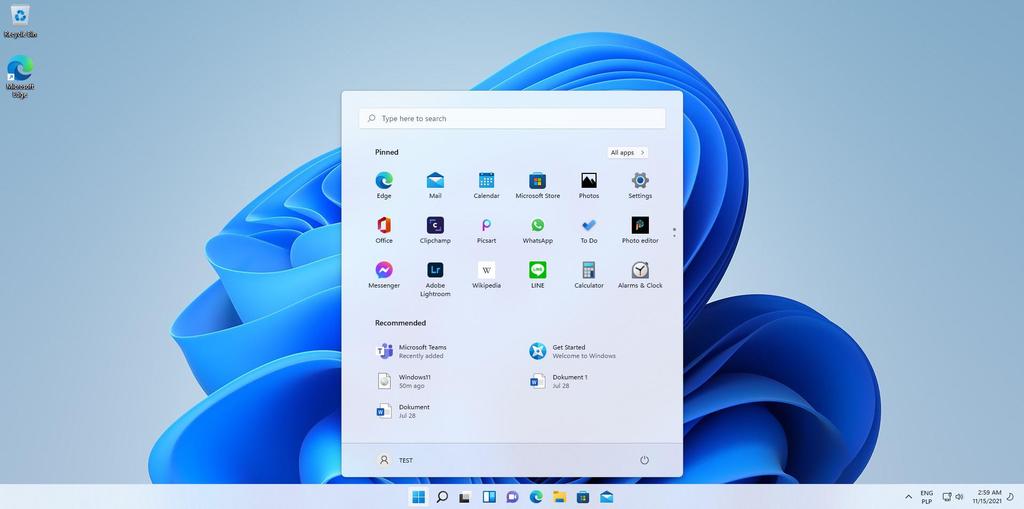
Windows 11 combines a redesigned interface with productivity, security, gaming, accessibility, and newer AI capabilities.
- Modern interface:
Centered Start menu/taskbar, updated Settings, rounded windows, themes, and improved touch support.
- Snap Layouts & Snap Groups:
Quickly arrange multiple apps side by side and return to those arrangements later.
- Virtual Desktops:
Create separate desktops for work, study, gaming, or personal use.
- File Explorer improvements:
Tabs and improved search/organization make managing several folders easier.
- Copilot & AI:
Copilot can assist with questions, writing and other tasks. Windows also includes AI enhanced features in apps such as Paint and Snipping Tool; some advanced capabilities require a Copilot+ PC.
- Phone Link:
Connect compatible Android phones and iPhones to access calls, messages, notifications, and other phone functionality from your PC.
- Better screenshots & recording:
Snipping Tool supports screenshots, screen recording, editing, text extraction, and newer AI enhancements.
- Security:
Windows Security, Microsoft Defender, firewall protection, Windows Hello face/fingerprint/PIN sign in, and hardware backed security features are integrated into the OS.
- Gaming:
Xbox integration, Game Bar, broad PC game compatibility, and modern graphics/gaming technologies.
- Accessibility:
Voice Access, Live Captions, touch/pen support and other accessibility features.
- Windows Backup:
Helps transfer files, settings and supported app information when moving to another Windows PC.
Official Windows 11 feature overview from Microsoft
Scenario: Protecting an Office Laptop
Consider a small IT training company with an employee named Ahmed.
Ahmed uses a Windows 11 laptop containing:
- Student records
- Course documents
- Business files
- Email accounts
- Training materials
One morning, Ahmed receives an email containing a suspicious attachment.
Step 1: SmartScreen
Ahmed downloads the file.
Windows security technologies may warn him if the download or application is known to be unsafe.
Step 2: Microsoft Defender
Defender scans the downloaded file and detects malicious behavior.
The file is blocked or quarantined.
Step 3: UAC
If the malicious program attempts to make an elevated system change, UAC may display a permission prompt.
Ahmed recognizes that he did not intentionally request an administrative operation and selects No.
Step 4: Windows Firewall
If the malware attempts to communicate with another system over the network, firewall rules can restrict unauthorized network traffic.
Step 5: Ransomware Protection
If the malware attempts to modify protected documents, Controlled Folder Access may block the unauthorized operation when configured appropriately.
Step 6: BitLocker
Suppose Ahmed’s laptop is later stolen.
BitLocker helps protect the data stored on the encrypted drive from straightforward offline access.
Step 7: Windows Update
Because Ahmed’s laptop receives security updates, known Windows vulnerabilities are patched as Microsoft releases fixes.
Result
Instead of depending on one security product, the laptop has multiple layers of defense:
User → SmartScreen → Defender → UAC → Firewall → Ransomware Protection → BitLocker
This is an example of defense in depth.
Windows Security Defense in Depth Model
A secure Windows computer should not depend on a single feature.
A simplified security model looks like this:
Hardware Security
↓
Secure Boot + TPM
↓
Windows Boot Process
↓
Windows Defender + Core Isolation
↓
Firewall + Network Protection
↓
SmartScreen + Application Protection
↓
User Authentication
↓
Data Encryption
↓
Backups and Security Updates
Each layer addresses different security risks.
Best Practices for Windows Security
To improve the security of a Windows computer:
- Keep Windows updated.
- Keep Microsoft Defender enabled.
- Keep Windows Firewall enabled.
- Use Windows Hello where available.
- Enable device encryption or BitLocker when appropriate.
- Use Secure Boot on supported systems.
- Do not ignore UAC warnings.
- Avoid downloading software from untrusted websites.
- Do not open suspicious email attachments.
- Use strong, unique passwords.
- Enable multi factor authentication for important online accounts.
- Maintain regular backups.
- Protect your BitLocker recovery key.
- Review installed applications regularly.
- Avoid using an administrator account for everyday activities when practical.
Conclusion
Windows Security is not a single tool; it is a multi layered security ecosystem. Features such as Microsoft Defender Antivirus, Windows Firewall, Windows Hello, BitLocker, Secure Boot, UAC, SmartScreen, Windows Update, Core Isolation, and ransomware protection work at different stages to reduce security risks.
The laptop scenario demonstrates why defense in depth matters. If one security layer fails, other layers may still prevent, detect, or limit the attack.
For students and IT professionals, understanding these features is an important foundation for learning Windows administration, cybersecurity, ethical hacking, and system security.