Malware Network Analysis
Introduction to Malware Network Behavior
Malware network analysis is the process of studying how malicious software communicates over a network. It helps cybersecurity professionals understand what malware is doing, which servers it contacts, and whether it is sending or receiving information.
When malware enters a computer, it may connect to another computer or server controlled by an attacker. It may download more malware, receive instructions, or send stolen information.
For example, imagine a user downloads a fake video player from an unknown website. After installation, the computer starts connecting to an unfamiliar server without the user’s knowledge. A security analyst can study this network activity to determine whether the program is malicious.
Network analysis helps security professionals detect suspicious communication and investigate infected computers.
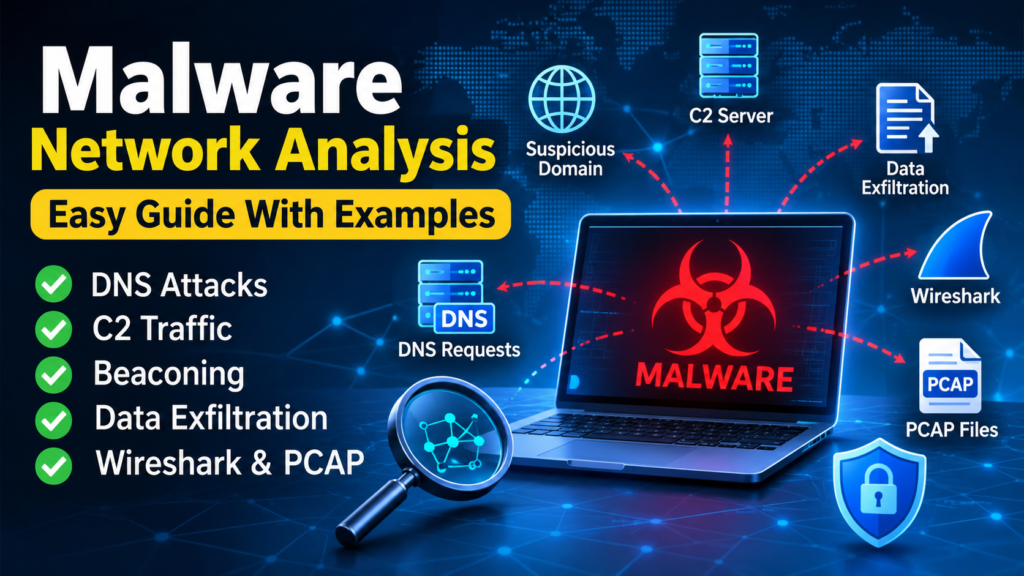
Table of Contents
DNS Requests and Suspicious Domains
What Is DNS
DNS stands for Domain Name System. It converts website names into IP addresses so computers can find the correct servers.
For example, when you enter a website name into your browser, your computer usually sends a DNS request to find the IP address associated with that name.
How Malware Uses DNS
Malware can use DNS to find the server it needs to communicate with. It may contact a suspicious domain to download files, receive instructions, or send information.
For example, a computer becomes infected after a user opens a suspicious email attachment. The malware then starts requesting an unfamiliar domain again and again. This activity may indicate that the malware is trying to contact its controller.
How to Identify Suspicious DNS Requests
Security analysts look for unusual domain names, repeated requests, and domains that are not normally used by the organization.
A domain containing random letters and numbers may deserve investigation, especially if it appears after a suspicious program runs.
However, an unfamiliar domain is not always malicious. Analysts should check other evidence before deciding whether a domain is dangerous.
HTTP and HTTPS Communication
What Is HTTP
HTTP is a communication protocol that allows web browsers and servers to exchange information.
For example, when you open a website, your browser may send an HTTP request to the web server to retrieve a page.
What Is HTTPS
HTTPS is the secure version of HTTP. It uses encryption to protect information exchanged between a browser and a server.
This makes it more difficult for someone monitoring the network to read the information being transferred.
How Malware Uses HTTP and HTTPS
Malware may use these protocols to download additional files, receive instructions, or send information to an attacker.
For example, a malicious program may connect to an unfamiliar website and download a file without the user’s knowledge. A security analyst can investigate the destination, connection time, and downloaded file to determine whether the activity is suspicious.
HTTPS does not automatically mean that a website or connection is safe. Attackers can also use encrypted connections.
Security analysts examine network activity alongside other evidence to understand what is happening.
Command and Control Infrastructure
What Is Command and Control
Command and control, often called C2, is a method attackers use to communicate with infected computers.
The attacker uses a remote server or another communication system to send instructions to malware.
How It Works
First, malware infects a computer. The malware then attempts to contact a remote server. If communication succeeds, the attacker may send instructions or request information from the infected computer.
For example, an employee installs a fake software update. The malware connects to a remote server and waits for instructions. The attacker may then try to download additional malicious software.
How Analysts Detect Command and Control Activity
Analysts investigate unusual connections, repeated communication with unknown servers, and unexpected network activity from programs that should not need internet access.
They may also compare destination addresses with trusted threat intelligence sources.
Finding a suspicious connection does not automatically prove an infection. Analysts need additional evidence to confirm what happened.
Beaconing Behavior
What Is Beaconing
Beaconing happens when a program sends repeated signals or requests to a remote server at regular or nearly regular intervals.
Some malware uses this behavior to check whether its command and control server is available.
Example of Malware Beaconing
Imagine a computer sends a small request to the same unfamiliar server every minute. The activity continues even when the user is not using the computer.
This repeated communication may be a sign of beaconing.
How to Detect Beaconing
Security analysts look for repeated connections, similar amounts of transferred data, and consistent time intervals.
However, legitimate applications also communicate regularly. Antivirus software and cloud applications, for example, may contact their servers automatically.
Analysts must compare the activity with normal computer behavior before deciding whether it is suspicious.
Data Exfiltration Indicators
What Is Data Exfiltration
Data exfiltration means transferring information from a computer or network without proper authorization.
Attackers may try to steal business documents, personal information, account details, or other sensitive data.
How Malware Steals Information
Some malware collects information from an infected computer and sends it to an external server.
For example, imagine a company computer suddenly uploads a large amount of data to an unfamiliar website late at night. This activity may indicate that someone is transferring company information without permission.
Warning Signs of Data Exfiltration
Security analysts look for unusually large uploads, unexpected external connections, and data transfers that happen at unusual times.
They also investigate whether the computer normally needs to communicate with the destination.
Large transfers are not always malicious because legitimate backups and cloud storage services can transfer large amounts of data. Analysts should check the available evidence before reaching a conclusion.
Analyzing PCAP Files
What Is a PCAP File
A PCAP file stores captured network packets. It allows security analysts to review network communication that occurred during a particular period.
These files can help investigators understand how computers communicated with other systems.
Why PCAP Files Are Important
PCAP files allow analysts to study DNS requests, network connections, and certain types of application traffic.
For example, a security tool detects an unusual connection from a company computer. The security team saves the relevant traffic in a PCAP file.
The analyst opens the file and checks which server the computer contacted, when the connection occurred, and what type of traffic was exchanged.
This information can help the analyst investigate whether the connection was suspicious.
How Analysts Examine PCAP Files
Analysts usually identify the computer involved, examine its connections, check unusual destinations, and review the timing of network activity.
If the traffic is encrypted, the analyst may not be able to read the actual information being exchanged. However, connection times, destination addresses, and traffic volume can still provide useful clues.
A PCAP file may contain only part of the network activity, so analysts should consider other logs and evidence when necessary.
Network Indicators of Compromise
What Are Indicators of Compromise
Indicators of Compromise, commonly called IOCs, are signs that may indicate a computer or network has been compromised.
Network IOCs are suspicious details found in network communication.
Common Network Indicators
Common indicators include suspicious IP addresses, unusual domain names, unexpected connections, and communication with known malicious servers.
For example, a security team discovers that an employee’s computer has connected to an IP address reported by a trusted security source as associated with malware.
The team investigates the connection and checks the computer for other signs of infection.
Why Network IOCs Are Useful
Network IOCs help security teams identify computers that may require further investigation.
They can also help security tools detect or block known malicious destinations.
However, attackers can change their IP addresses and domains. Therefore, security professionals should combine IOCs with other evidence rather than relying on a single indicator.
Identifying Malicious IP Addresses and Domains
What Is an IP Address
An IP address is a numerical address used to identify a network interface and communicate with other devices.
Computers use IP addresses to send information to the correct destination.
What Is a Domain Name
A domain name is a readable name associated with an internet service.
For example, a website domain can point to the IP address of the server hosting that website.
How to Investigate Suspicious Addresses
Security analysts may check IP addresses and domains using trusted threat intelligence sources and reputation services.
They can also review DNS records, connection history, and the behavior of the program that contacted the destination.
For example, a computer starts connecting to an unfamiliar domain immediately after a user installs a suspicious application. A trusted threat intelligence source also identifies the domain as associated with malware.
These findings provide a strong reason to investigate the computer further.
Why Careful Investigation Is Important
Not every unfamiliar IP address or domain is dangerous. Many legitimate websites use shared hosting and cloud services.
Analysts should check several pieces of evidence before classifying a destination as malicious.
Detecting DNS Tunneling Indicators
What Is DNS Tunneling
DNS tunneling is a technique that carries information through DNS requests and responses.
Attackers may misuse this technique to communicate with malware or transfer information through a network.
How DNS Tunneling Works
Normally, DNS is used to find the IP address associated with a domain name.
In DNS tunneling, information may be hidden inside DNS queries or responses. This can allow communication to take place through DNS traffic.
For example, an infected computer repeatedly sends DNS requests containing unusually long strings of random-looking characters. The requests continue even when the user is not browsing the internet.
This behavior may indicate DNS tunneling.
Warning Signs of DNS Tunneling
Security analysts look for unusually long DNS requests, large numbers of unique subdomains, repeated requests to the same domain, and unexpected DNS traffic.
However, these signs do not always indicate an attack. Some legitimate services also generate unusual DNS requests.
Analysts should examine the full pattern and compare it with normal network activity.
Using Wireshark for Malware Traffic Analysis
What Is Wireshark
Wireshark is a network analysis tool that allows users to capture and examine network packets.
Cybersecurity professionals use it to understand how computers communicate and to investigate suspicious network activity.
How Wireshark Helps in Malware Analysis
Wireshark can help analysts identify DNS requests, inspect network connections, and examine available packet information.
For example, a computer running a suspicious program starts connecting to an unfamiliar server. An analyst captures the network traffic and opens it in Wireshark.
The analyst checks the destination address, communication time, and type of traffic to understand what the program is doing.
Useful Wireshark Filters
Wireshark provides filters that help analysts find specific types of network traffic.
The filter dns displays DNS traffic.
The filter http displays traffic recognized as HTTP.
The filter tls displays traffic recognized as TLS.
The filter tcp displays TCP packets.
The filter ip.addr == 192.168.1.10 displays IP packets where the address is either the source or destination.
For example, if the computer being investigated uses the IP address 192.168.1.10, the last filter helps the analyst focus on its network communications.
Understanding the Results
Analysts look for unusual destinations, repeated connections, unexpected requests, and suspicious traffic patterns.
Wireshark does not automatically identify every malicious connection. Security professionals must interpret the results and compare them with other evidence.
HTTPS traffic is encrypted, so its application content generally cannot be read directly without authorized decryption access.
Simulating Network Services in an Isolated Lab
What Is an Isolated Lab
An isolated lab is a controlled environment used to study suspicious software without exposing ordinary computers or production networks to unnecessary risk.
It may include virtual machines, simulated servers, network monitoring tools, and dedicated test systems.
Why Simulate Network Services
Some malware tries to contact a remote server to receive instructions or download additional files.
In a controlled lab, analysts can simulate selected network services and observe how a sample behaves when those services respond.
For example, a malware sample attempts to find a server using DNS and then connects to a web service. A controlled lab can provide simulated DNS and web responses so the analyst can record the resulting network traffic.
How Students Can Practice Safely
Students can use a dedicated virtual machine and an isolated virtual network for authorized analysis exercises.
They can capture the test computer’s network traffic and review it in Wireshark.
For example, a student observes repeated DNS requests and attempted connections to a simulated server. The student records the timing and destination information and then studies the PCAP file.
This exercise helps the student understand malware network behavior without exposing the normal home or office network.
Important Safety Precautions
The lab should be isolated from everyday devices and production systems. Students should use snapshots to restore virtual machines to a clean state and prevent uncontrolled internet access.
They should never run live malware on their everyday computer or allow an infected machine to communicate freely with external systems.
Some malware may behave differently in a simulated environment, so analysts should record the lab settings and understand the limitations of their observations.
Conclusion
Malware network analysis helps cybersecurity professionals understand how malicious software communicates with other computers and servers.
By studying DNS requests, HTTP and HTTPS traffic, command and control activity, beaconing, and possible data exfiltration, analysts can identify suspicious behavior and investigate potential infections.
PCAP files and Wireshark help analysts examine network traffic, while network indicators and threat intelligence provide additional evidence. Simulated network services allow students to practice these skills in a controlled environment.
The most important lesson is that one suspicious connection does not always prove an infection. Accurate malware analysis requires careful observation, comparison with normal behavior, and supporting evidence from other security sources.